Transparent background images are everywhere: product mockups, sticker designs, social media graphics. Getting a clean cutout used to mean Photoshop or a dedicated tool. Now, with ChatGPT Images 2.0 transparent background prompts, you can isolate subjects cleanly without any extra steps.
This guide covers why it works, exactly how to do it, and what to try when the results aren't quite right.
Why ChatGPT Images 2.0 Works for Transparent Backgrounds
ChatGPT Images 2.0 handles transparent backgrounds better than most people expect. A few reasons it works:
-
Strong prompt adherence. The model treats background instructions literally. "Transparent PNG background, no background fill" is applied as a hard constraint.
-
Thinking Mode for complex subjects. For hair, fur, or fine detail, Thinking Mode runs a reasoning pass before generating, producing noticeably cleaner edges.
-
Multi-image consistency. Thinking Mode can generate up to 8 images sharing the same subject and style, useful for sticker sheets or product series.
-
Upload and edit support. You can upload an existing photo and ask ChatGPT to remove the background directly, no AI-generated subject needed.
How to Create Transparent Background Images with ChatGPT Images 2.0
-
Step 1: Upload Your Image and Add Your Prompt
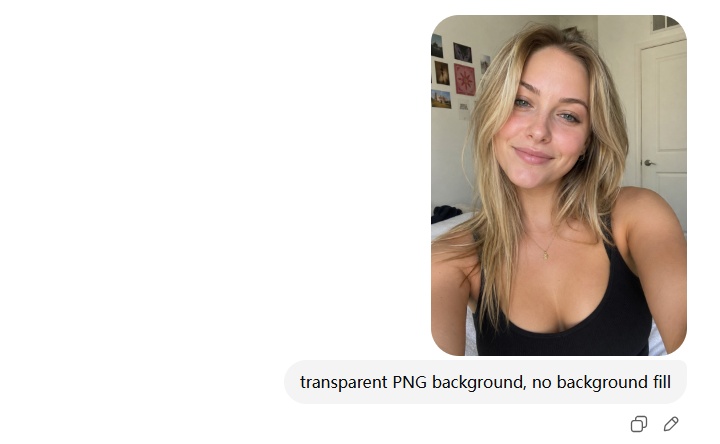
Upload your photo in ChatGPT and use this prompt: transparent PNG background, no background fill.
-
Step 2: Review the Output
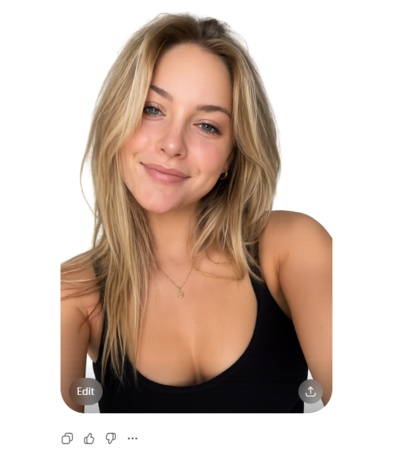
ChatGPT returns the subject with the background replaced. As shown in the result below, the original room background is gone and replaced with a solid black, with clean edges around the subject.
-
Step 3: Download and Use
Download as PNG to preserve transparency and drop it directly into Canva, Figma, or PowerPoint.


Quick tips from the community:
-
Add "crisp silhouette, no halos, no fringing" if edges look rough
-
Use Thinking Mode for subjects with fine detail like hair
-
Specify aspect ratio at the start of your prompt for better framing
Bring Your Ideas to Life Visually with Diagrimo

Transparent background images are just one piece of visual communication. If you're building presentations, brainstorming workflows, or planning out a project, visuals that explain a process or structure are just as important as polished graphics.

That's where Diagrimo is worth knowing about. It's a text-to-visual tool that turns plain descriptions into clean, readable diagrams in seconds. You type what you want to show, and Diagrimo generates the visual.
Some things people use it for:
-
Turning a project plan or workflow into a clear diagram to share with a team
-
Mapping out content calendars or campaign structures visually
-
Creating visual summaries of ideas for presentations or client decks
No design experience needed. If you can describe it in a sentence, Diagrimo can turn it into something you'd actually want to share.
If ChatGPT Images 2.0 Falls Short: Alternatives to Try
Background Still Showing After Prompting
Ask for a "pure white background" instead of transparent, then run it through a removal tool:
Noise or Artifacts in the Output
The noise amplification bug in ChatGPT Images 2.0 has been patched. If you still see artifacts, refresh the page and start a new session. A long conversation with accumulated image data can degrade quality.
Same Image Repeating
Refreshing resets the model's internal seed. This is a known quirk in the community forums and a fresh session resolves it consistently.
Final thoughts
ChatGPT Images 2.0 makes transparent backgrounds genuinely accessible. Start with "transparent PNG background, no background fill," switch to Thinking Mode for detailed subjects, and fall back to a white background plus a removal tool when needed. For creating diagrams and visual content beyond images, give Diagrimo a try.

- AI text-to-visuals turns ideas into diagrams or infographics.
- Customizable styles match your brand and presentation tone.
- Share anytime by exporting in various formats and a link.
- No design skills needed for presentations, teaching, or reports.

FAQs
-
Can ChatGPT Images 2.0 make a transparent background?
-
Does gpt-image-2 support transparent backgrounds via the API?
-
Why does my image still have a white background?
When should I use Thinking Mode?
Is ChatGPT Images 2.0 free?
Yes. Prompt it with "transparent PNG background, no background fill" to isolate the subject. Works well for portraits and product images.
No. Requests with background: "transparent" are not supported for gpt-image-2. Use gpt-image-1 for API-level transparency.
The model may have interpreted the prompt loosely. Try asking for a solid white background first, then remove it with remove.bg or Photopea.
Use it for subjects with complex detail like hair or fur. It produces cleaner edges but takes longer. Available on Plus and Pro plans.
ChatGPT Images 2.0 is available on all tiers. Images with thinking is available on Plus, Pro, and Business.
