PowerPoint is the most basic presentation software that we all get familiar with in school, and we still use it in our professional lives. It lets you create presentations and slide shows to visually present your ideas and topics. But can you turn a PowerPoint presentation into a video?
Yes! In this article, I'll demonstrate how to turn a PowerPoint into a video with audio, voiceover, and music on Windows and Mac.
Why People Need to Turn a PowerPoint into a Video?
There could be various reasons behind why you need to turn a PowerPoint into a video, such as:
-
You may not be able to present the slides yourself and want to record the narration beforehand.
-
Your audience can use the video for future reference after the presentation.
-
To upload it to different platforms such as YouTube, Facebook, etc.
-
You may want to make the PowerPoint accessible to your audience without requiring them to install the software.
-
A recorded PowerPoint makes your life easier by eliminating the need for you to switch the slides manually.
How to Turn a PowerPoint into a Video on Windows?
Since PowerPoint is the product of Microsoft, let's first see how to turn a PowerPoint into a video with voiceover on Windows:
Method 1: Use Built-In PowerPoint Feature
Luckily, PowerPoint includes a built-in feature that lets you save your presentation as a video. After creating the slideshow, follow the steps given below to save your PPT as a video:
-
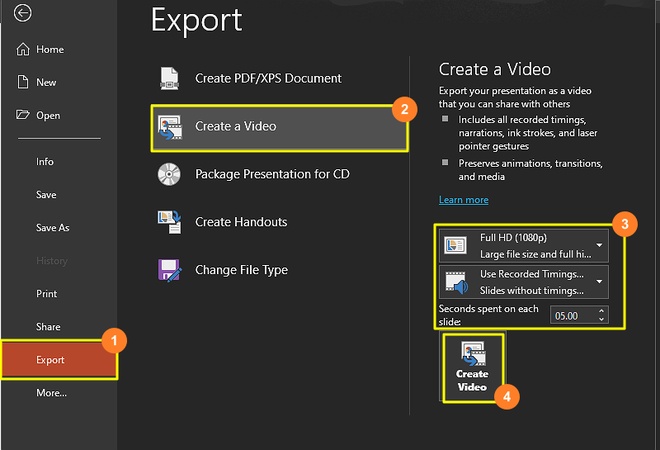
Go to the File menu and select Export.
-
Select the Create a Video option.
-
Select video quality and other options.
-
Click Create Video.
-
Name the video and click Save.
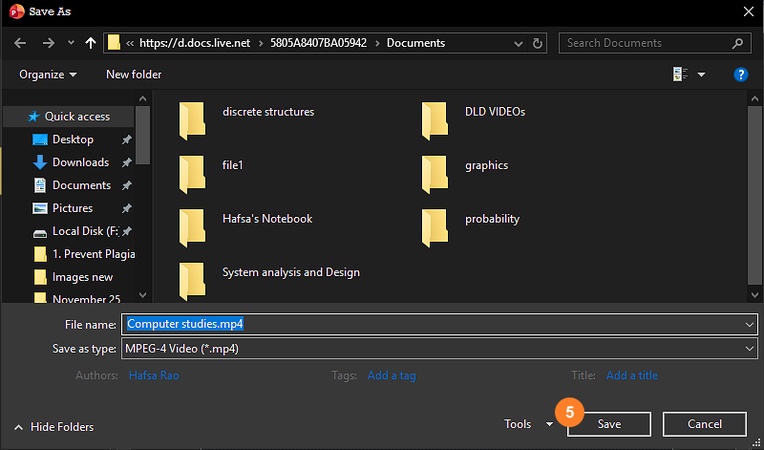


This method keeps your animations, transitions and any recorded timings. It is the simplest and most direct option.
Features:
Method 2: Record a Video
Another built-in feature that allows you to convert your PowerPoint to a video is the Recording feature. It was introduced in PowerPoint 2016 and is available in all the latest features. You can also get it in PowerPoint 2013 with an update. The following steps shows how to turn a PowerPoint into a video using the Recording tab after the presentation is complete:
-
Go to the Record tab.
-
Click on Record and select the preferred option.
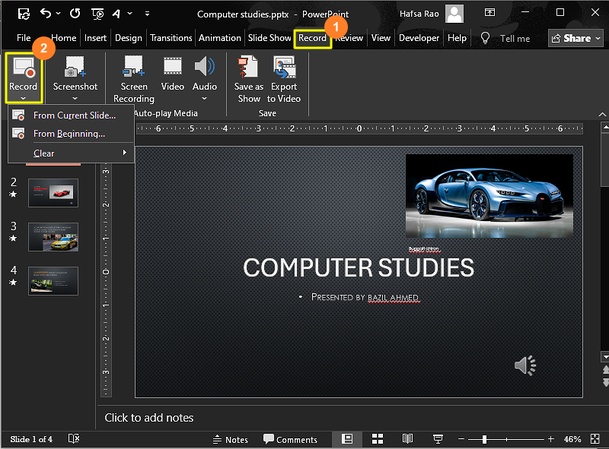


This feature lets you record the screen while presenting slides. It also lets you record your audio and mouse pointer, add annotations, highlight text, and more.
-
Click Export to Video once the video has been recorded.
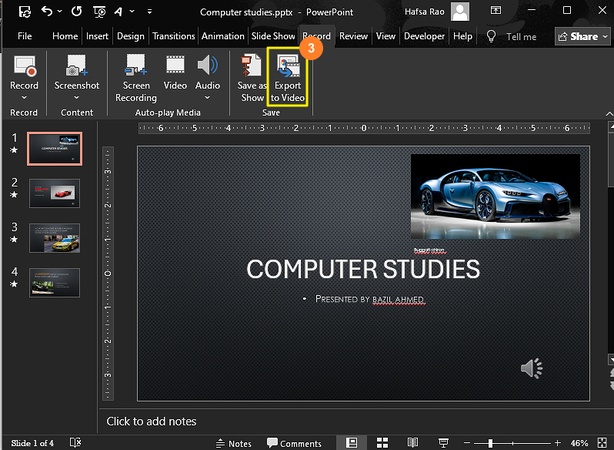

The recording automatically stops when you exit the slideshow.
Features:
How to Turn a PowerPoint into a Video on Mac?
Just like Windows, you can easily record your slideshow and convert it to a video on a Mac. The following steps demonstrate turn a PowerPoint into a video on Mac easily:
-
Open the presentation.
-
Switch to the Slide Show tab.
-
Select Record Slide Show.
-
Once done, stop the slide show.
-
Go to the File menu.
-
Select Export.
-
Select the mp4 or MOV file format and hit Export.
Your PowerPoint will be saved as a video in the selected location.
Mac Export Notes
-
Older versions may only export MOV.
-
Keeps animations, transitions and narration.
How to Turn a PowerPoint Into a Video for YouTube?
You can easily turn a PowerPoint into a YouTube video following any of the methods mentioned in the above sections. An .mp4 or .MOV file can be uploaded to YouTube without any issues.
How to Turn a PowerPoint Into a Video on Canva?
Canva is another handy tool that allows you to convert your PowerPoint into videos easily, as follows:
-
Open Canva and upload/import your PowerPoint presentation.
-
Make changes to the presentation, and add audio or captions.
-
Click Share, then Download.
-
Select MP4 Video from the file format dropdown.
-
Click on Download.
Notes
-
Does not keep PowerPoint animations or detailed formatting.
-
Does not keep recorded narration or timings.
-
Best for quick social media style videos.
How to Make Your PowerPoint More Interesting?

PowerPoint presentations may get boring for your audience if they lack interactive elements, interesting colors, and animations. Similarly, the text-only presentations are not engaging enough, especially when presenting to children or students.
If you face difficulty in creating visuals and diagrams to be added to your presentations, Tenorshare Diagrimo is what you need! It is an AI-powered tool that turns your textual descriptions into attractive diagrams to help your audience understand what you are presenting.
- Go to Tenorshare AI Diagrimo.
- Enter the text you want to visualize, then click the Visualize icon.
- Wait for Diagrimo to generate different charts and visual styles based on your text.
- Browse and select the preferred style from the left sidebar.
- Once done, you can export your visuals as an image or a PDF document and use them anywhere.


Conclusion
PowerPoint is a widely used software that not only allows you to create slide shows but also record videos and documents. In this article, we have discussed how to turn a PowerPoint into a video with voiceover, audio, or music on Windows and Mac. Since PowerPoint has built-in features to do so, you do not need to install or have any third-party software to record a video.
Moreover, you can enhance your PowerPoint presentations with our diagram builder, an incredible tool that converts your ideas into visuals from text.

- AI text-to-visuals turns ideas into diagrams or infographics.
- Customizable styles match your brand and presentation tone.
- Share anytime by exporting in various formats and a link.
- No design skills needed for presentations, teaching, or reports.

FAQs
-
How do I convert a PowerPoint presentation to a video?
Can AI turn a PowerPoint into a video?
-
How to record a PowerPoint presentation as a video with audio?
Why can't I export my PowerPoint as a video?
-
How to turn a PowerPoint into a video with voiceover?
You can easily convert a PowerPoint presentation into a video using any of the methods mentioned in this article. The easiest way would be to export the presentation as a video from the File menu.
Yes, you can find numerous AI tools that can help you turn a PowerPoint into a video, such as Mootion, Synthesia, and HeyGen, to name a few.
You can use PowerPoint's built-in Record feature to turn a PowerPoint into a video with audio. Just make sure that your mic is enabled while recording.
There could be various reasons, such as your PowerPoint version not having the required feature or conflicting third-party applications.
You can add a voiceover to the PowerPoint exported as a video using a video editing software or Canva.
