NotebookLM has become a popular AI-powered research assistant for students, researchers, and professionals around the world. Whether you're summarizing documents, asking questions, or generating audio overviews, being able to use NotebookLM in your preferred language greatly improves usability and productivity.
If you've been searching for how to change language in NotebookLM , this complete 2026 guide will show you exactly what to do. We cover supported languages, step-by-step instructions for interface and output language, mobile and desktop methods, and how to transform your multilingual notes into clean visual presentations.
What Languages Does NotebookLM Support?

NotebookLM supports a wide range of languages to serve global users. Language support applies to both the platform interface and AI-generated content such as summaries, responses, podcasts, and audio overviews. Google regularly expands language availability, so more options are frequently added to improve accessibility for international users.
NotebookLM Supported Languages in 2026
As of 2026, NotebookLM supports over 80 languages across the globe. According to recent updates from Google's official AI resource hub , major widely used languages include English, Spanish, French, German, Italian, simplified and traditional Chinese, Japanese, Korean, Hindi, Arabic, Portuguese, Russian, Persian, Dutch, Swedish, and Polish.
This broad language support allows users from different regions to use NotebookLM comfortably for research, learning, and daily work.
Can NotebookLM Read Other Languages?
Yes, NotebookLM can still read and understand content written in other languages even after you set your preferred interface or output language. It can fully parse uploaded documents, articles, and study materials in any supported language, regardless of the display language or output language you have selected.
This means you can upload foreign-language files while keeping the UI in your native language and receiving summaries in your target language, making NotebookLM highly effective for cross-language research, multilingual learning, and reviewing international documents without extra translation work.
How to Switch Language in NotebookLM Interface?
Many users want to use NotebookLM with a more familiar navigation experience by switching the interface language. Unlike output language, which controls AI-generated content, the NotebookLM interface language determines the display text of menus, buttons, labels, and on-screen options.
Since NotebookLM is connected with your Google Account, changing its interface language requires adjusting your Google Account language settings. This change applies across most Google services and ensures a consistent experience.
Follow these simple steps to switch the NotebookLM interface language:
First, sign in to your Google Account and go to your account settings. Find the Personal Info section and locate the Language settings under General Preferences for the Web.

From here, add your preferred language or rearrange the order to set a primary language.

Refresh the NotebookLM page in your browser . The interface will then update to display menus and options in your selected language, making the tool easier to navigate and use.
If the interface does not update immediately, try clearing your browser cache or logging out and back into NotebookLM. In most cases, the new language settings will take effect within a few seconds.


Another quick method is to adjust the language settings in your Chrome profile where you're signed into your Google Account. This change will also sync and affect the display language of the NotebookLM interface.
How to Change Output Language in NotebookLM?
It's important to note that interface language and output language in NotebookLM are separate settings---changing one will not automatically update the other. The interface language controls your display menus, while the output language determines the language of AI-generated content.
Changing the output language lets you control what language NotebookLM uses for summaries, chat responses, notes, and audio overviews.
Here's how to do it:
-
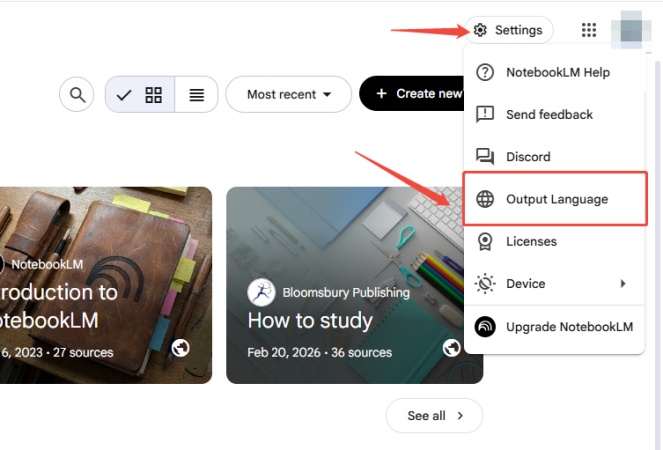
Step 1: Access the Output Language Settings
Open your notebook in NotebookLM. Click the Settings (gear) icon in the top-right corner, then locate the Output Language section.
-
Step 2: Choose and Save Your Language
Select your desired language from the dropdown menu. Click Save to confirm the change.
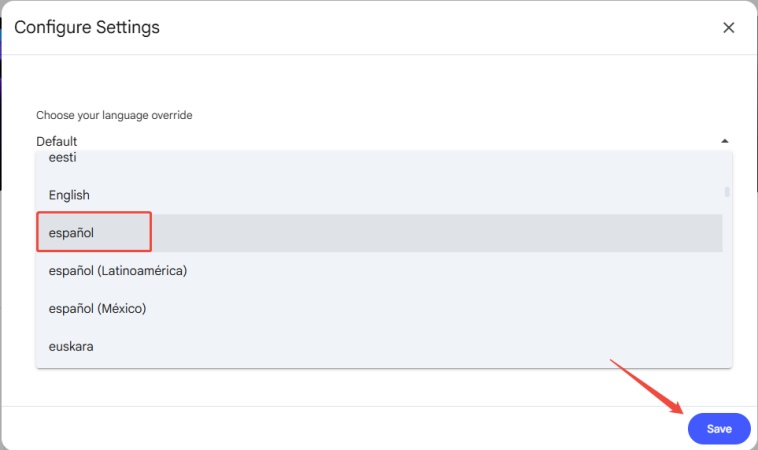
After saving, all new AI-generated content will appear in your chosen language.


Diagrimo: Convert NotebookLM Notes into Polished Visuals

While NotebookLM can generate mind maps, audio summaries, and PPT outlines, it still lacks the ability to create polished, highly customizable visuals that can be easily reused across different documents---often requiring an extra step to turn structured notes into presentation-ready graphics. To streamline this process, Diagrimo bridges the gap by transforming well-organized NotebookLM notes into professional visuals, including structured diagrams, flowcharts, and presentation-ready graphics, allowing you to extend your workflow more efficiently.
With Diagrimo, you can:
-
Paste NotebookLM notes to automatically generate visuals
-
Create multilingual graphics for international presentations
-
Edit layouts, colors, and elements in real time
-
Export clean visuals for reports, slides, and meetings
By streamlining the transition from notes to visuals, Diagrimo makes it easier to present information clearly and enhance the impact of multilingual research.
Conclusion
Adjusting language settings in NotebookLM is straightforward once you know where to look. Whether you want to change the interface language for easier navigation or set a specific output language for summaries and audio, this guide covers every method you need.
With support for dozens of languages and flexible settings across desktop and mobile, NotebookLM is built for global users. And with Diagrimo , you can transform your multilingual notes into professional visuals that enhance any project or presentation.
By following the steps in this guide, you can fully customize NotebookLM language settings and use the tool more effectively.

- AI text-to-visuals turns ideas into diagrams or infographics.
- Customizable styles match your brand and presentation tone.
- Share anytime by exporting in various formats and a link.
- No design skills needed for presentations, teaching, or reports.

FAQs
-
How to Change Language in NotebookLM Mobile App?
-
How to Change Language in NotebookLM Podcast?
-
How to Change Audio Language in NotebookLM?
-
How to Change Language in NotebookLM App on Android Devices?
-
How to Change Language of NotebookLM on Computers?
-
How to Set Language in NotebookLM on Apple Devices?
NotebookLM can be used on mobile via a standard browser, and its language settings work just like on desktop. The interface language will follow your Google Account language, while the output language can be changed by opening your notebook in the browser, tapping the settings icon, and selecting your preferred language under the output language section.
The language of your NotebookLM podcast is controlled entirely by your output language setting. Simply go to the settings menu in your notebook, choose your desired language from the language override options, and save the changes. The podcast will then be generated in your selected language, no matter what language your original files use.
Audio content in NotebookLM uses the same language as your output language setting. To change it, open the settings in your notebook, select your preferred language for output, and save the setting. All new audio overviews will automatically use the language you choose.
On Android devices, NotebookLM runs in your browser, so language settings work the same way across platforms. You can adjust the interface display by updating your Google Account or browser language, and change the output language directly within your notebook's settings menu. You may need to complete a quick verification if unusual network activity is detected.
On a computer, you can change the NotebookLM interface language by updating your Google Account language or Chrome profile settings. To adjust the output language, simply open your notebook, click the settings icon on the right, find the output language option, select your preferred language, and save. This change will apply to all AI-generated content including summaries, responses, and podcasts.
On Apple devices, you can access NotebookLM through any mobile browser. The interface language is determined by your Google Account or browser language preferences, while the output language for summaries and audio can be easily updated in the settings section of your notebook.
