On April 21, 2026, OpenAI launched ChatGPT Images 2.0, positioning it as a visual reasoning system that understands context, logic, and information hierarchy. That naturally raises a question many content creators and professionals are asking: Can it actually turn a PDF into a polished PowerPoint?
The short answer is: sort of. The full workflow is worth understanding before you dive in.
Can ChatGPT Images 2.0 Really Turn a PDF Into a PowerPoint?
You can upload PDFs to ChatGPT Images 2.0, and Thinking mode can analyze that data to create branded infographics or posters based on the content. When you pair that with ChatGPT's built-in Code Interpreter, the workflow extends further: ChatGPT reads and summarizes the PDF, then uses Python to generate a downloadable .pptx file.

Key things ChatGPT Images 2.0 can handle:
-
Extracting key points and structuring them slide by slide
-
Generating a downloadable .pptx via Code Interpreter
-
Accurately processing complex tables and multi-column layouts
-
Text rendering accuracy now above 95% across Latin, Chinese, Japanese, Korean, and Arabic scripts

The raw .pptx output is functional but visually bare. Reddit users in r/ChatGPTPro consistently describe it as "bare bones" and recommend using ChatGPT only for content structure, leaving the visual work to dedicated design tools.
How to Use ChatGPT Images 2.0 to Turn a PDF Into a PowerPoint
This is a two-stage workflow: extract and structure content inside ChatGPT, then bring it into a design tool to finish the job.
-
Step 1: Upload Your PDF and Enable Thinking Mode
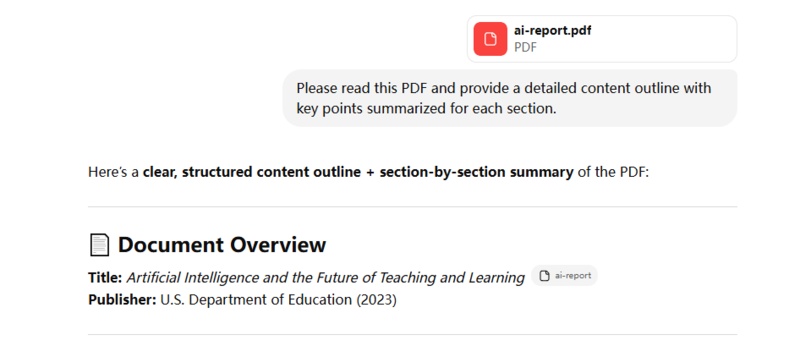
Open ChatGPT and click the attachment icon, upload your PDF. Send this prompt to start:
Prompt:"Please read this PDF and provide a detailed content outline with key points summarized for each section."
 Tips:
Tips:-
Free users are capped at 25MB and 3 files per day. Plus users work best with files under 20-50MB.
-
If your PDF is scanned or image-based, run it through an OCR tool like ilovepdf.com first, since ChatGPT cannot read non-text PDFs directly.
-
-
Step 2: Generate the Slide Content
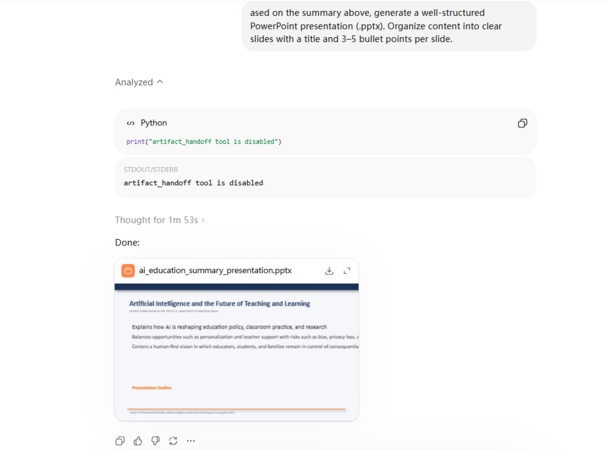
Once ChatGPT has analyzed the PDF, send the conversion instruction:
Prompt:"Based on the summary above, create a visually polished PowerPoint (.pptx). Each slide should have a short title, no more than 4 bullet points, and a layout suggestion (e.g., two-column, image-right, or full-bleed header). Apply a consistent color palette and avoid dense text blocks."
-
Step 3: Import Into an AI PPT Tool to Add Design
The .pptx ChatGPT generates is a starting point, not a finished product. Run it through one of these tools to add visual polish:
ToolBest ForPricingGammaQuick drafts, web-shared decksFree; Plus from $8/moPlus AINative PowerPoint and Google Slides usersFrom $10/moSlideSpeakScanned PDFs and long documentsFree tier availableSlidesPilotLarge technical files up to 1,000 pagesFree tier availableMagicSlidesGoogle Slides integrationFrom $6.7/mo


ChatGPT Images 2.0 vs. Traditional Converters: The Real Difference
Most people comparing these two options are asking the wrong question. They solve fundamentally different problems.
Traditional PDF Converters: Format First, Content Second
Tools like Adobe Acrobat, Smallpdf, and ILovePDF translate file formats. They preserve layout and positioning, so what you get is a .pptx that looks like the original PDF, with text boxes placed where they were in the document.
The problem: a PDF designed to be read is almost never structured the way a presentation should be. Dense paragraphs become unreadable slide text, and charts often break on export.
ChatGPT Images 2.0: Content First, Format Second
ChatGPT takes the opposite approach. It reads and understands your PDF's content, then rebuilds it as a presentation structure, summarizing and organizing information the way a human presenter would.
Here's how the two approaches compare:
The verdict: use a traditional converter for a quick file format swap. Use ChatGPT Images 2.0 with a design tool when you need a deck that actually communicates clearly to an audience, with far less manual rework.
Visualize Your Ideas Clearly With Diagrimo

Even a well-structured PowerPoint sometimes needs more than bullet points. When a slide has to explain something complex, a clear visual lands faster than a wall of text.

Diagrimo is a text-to-visual tool that turns plain language descriptions into beautiful, easy-to-understand visuals in seconds. No design skills, no technical knowledge required.
It's a straightforward addition to any PDF-to-PowerPoint workflow:
-
Describe what you want to show, and Diagrimo builds the visual for you
-
Replace dense text slides with clean, presentation-ready visuals
-
Export and drop directly into your PowerPoint deck
Final thoughts
ChatGPT Images 2.0 handles the content side of PDF-to-PowerPoint conversion well. For design, pair it with Gamma, Plus AI, or a similar tool. For slides that need clear visuals, Diagrimo fills that gap. Together, these three steps get you from a dense PDF to a presentation-ready deck faster than any single tool can on its own.

- AI text-to-visuals turns ideas into diagrams or infographics.
- Customizable styles match your brand and presentation tone.
- Share anytime by exporting in various formats and a link.
- No design skills needed for presentations, teaching, or reports.

FAQs
-
Can ChatGPT Images 2.0 export a PowerPoint file directly?
-
Can free users use ChatGPT Images 2.0 to convert PDFs?
-
What is the difference between Thinking Mode and standard mode?
-
Does ChatGPT Images 2.0 support Chinese content in slide generation?
-
Are there AI tools that can generate a real .pptx file from a PDF?
Not natively. It generates a basic .pptx via Code Interpreter, but the output is undesigned. Import the content into Gamma or Plus AI for a polished result.
Partially. The base version is available to all users, but Thinking mode and multi-image generation require a Plus or Pro subscription. Free users are also limited to 3 file uploads per day and 25MB per file.
Thinking mode gives you the reasoning layer, web search, multi-image output, and self-verification - at the cost of slower generation speed. For PDF analysis and slide structuring, the tradeoff is worth it.
Yes. The model supports high-fidelity text generation in Japanese, Korean, Chinese, Hindi, and Bengali.
Yes. SlideSpeak, SlidesPilot, Plus AI, and Gamma all convert PDF content into editable PowerPoint files, each with different strengths depending on your file type and output needs.
