Recently, many ChatGPT Plus users have reported encountering the error message "You've reached our limit of file uploads. Please try again later." when trying to upload files. Surprisingly, this warning can appear even if only a few small files have been uploaded that day. As shown in the screenshot below, the issue has been widely discussed on Reddit and other communities. But no worry! In this guide, well explain the possible causes of the ChatGPT file upload limit and show you how to fix it.

- 1. Wait for the Rolling Window to Reset
- 2. Paste Text Instead of Uploading
- 3. Combine Multiple Files Into One
- 4. Delete Old Files to Free Up Storage
- 5. Start a New Conversation
- 6. Switch Models
- 7. Try Incognito Mode or a Different Browser
- 8. Clear Cache and Hard Refresh
- 9. Check OpenAI's Status Page
- 10. Contact OpenAI Support
- 11. Use the ChatGPT API
- 12. Looking for Alternatives
Why Is ChatGPT Saying You Reached the Limit of File Uploads?

ChatGPT caps the number of files you can upload within a set time window. These limits vary depending on your plan, especially the chatgpt plus file upload limit for paid users. Once you hit that cap, the system blocks new uploads until the window resets. The error message is the only signal you get. There are a few different reasons this error can appear, and they're not always obvious:
1. Too Many Files Uploaded in a Short Time
If you upload many files quickly, the system may stop accepting new ones for a while. This is one of the most common causes of the chatgpt reached limit of file uploads error. Each plan has a fixed number of file uploads allowed within a rolling time window. Free users get 3 files per day. Plus users get up to 80 files per 3-hour window, which reflects the typical chatgpt plus file upload limit for most paid accounts. Once you hit that number, uploads are blocked until enough time passes.
On Reddit, some users reported uploading dozens of screenshots or research files within an hour. After that, ChatGPT blocked additional uploads until the system reset the limit.
2. You've Made Too Many Requests to ChatGPT
Another possible cause is sending too many actions quickly. If you submit prompts, uploads, or retries repeatedly within a short time, the system may slow down your activity. This can trigger errors like chatgpt you've made too many requests, which temporarily blocks uploads.
3. ChatGPT Image Upload Failed
Image uploads sometimes fail even when the user has not reached the upload limit. This often happens if:
-
the image is too large
-
the connection is unstable
-
the file format is unsupported
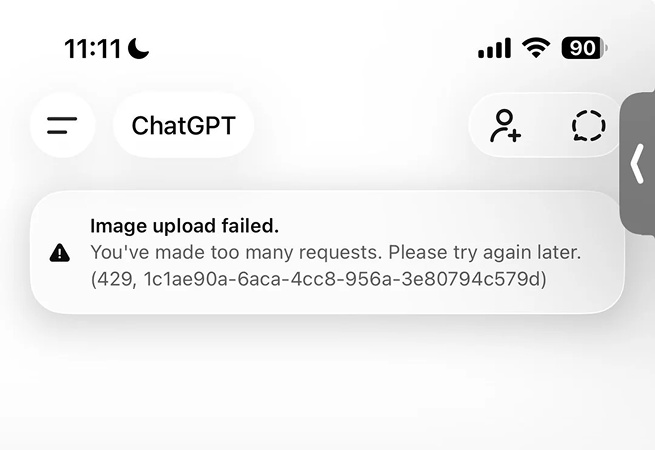

When this happens, users may see chatgpt image upload failed instead of the limit message.
4. OpenAI Has Temporarily Reduced Limits Due to High Server Load
OpenAI's own Help Center confirms that limits may be lowered during peak usage hours to protect system stability. This means you can hit the wall earlier than usual on busy evenings or weekends, even if you haven't reached your normal quota. There's no notification when this happens.
5. You've Hit Your Storage Limit
Every ChatGPT account has a storage cap. Plus users get 10GB. If your previous uploads have filled that space, new uploads will fail even if your time-based quota hasn't been used. Deleting old files from past conversations can free up space.
6. It Might be a Server-side Issue or a Bug
Not every instance of this error is actually about your personal usage. OpenAI's servers sometimes generate this message during outages, maintenance windows, or periods of unusually high load, even when you haven't uploaded anything close to your limit. Users across Reddit and OpenAI's forums have repeatedly reported hitting the error after uploading just a handful of files.
One Plus user described exactly this situation:

Another user pointed directly to server problems as the cause:

If you suspect a server issue, the fastest way to check is to visit status.openai.com. OpenAI publishes real-time updates there, and several users have confirmed the upload error disappears once any reported incident is resolved.
7. You're Confusing It with a Different Error
"You've reached our limit of file uploads" is different from "you've made too many requests." The first is about file attachments. The second is about sending messages too fast. Both block you, but they have different causes and different fixes. Also, if you see a "Free plan limit" warning despite having a Plus subscription, don't panic. That's a generic system message OpenAI uses even for paid accounts when the upload quota is hit.
Is There a File Upload Limit on ChatGPT?
Yes, and it varies by plan. Understanding the chatgpt plus file upload limit is especially important for users who upload files frequently. Here's a breakdown of what each plan currently allows, based on OpenAI's official Help Center and verified community reports:

Pro is the only plan with truly unlimited file uploads, subject to abuse guardrails.
A few things worth understanding about how this system works:
-
The rolling 3-hour window means Plus users don't wait until midnight. If you uploaded 30 files at 9 AM, those 30 slots open again at noon. Your quota refreshes gradually, not all at once.
-
Images and general files have separate counters. On Plus, you can upload up to 80 files and 50 images per day. Both limits run at the same time, so heavy image users can hit the image cap while still having file quota left.
-
There's also a per-message limit. Regardless of your plan, you can only attach 10 files per message. For large uploads, you'll need to split them across multiple messages.
-
File size limits vary by type. Documents and PDFs can go up to 512MB, images are capped at 20MB each, and spreadsheets like CSV files are capped at around 50MB.
-
Text-based files have a token limit of 2 million tokens per file, which is roughly 3,000 pages of standard text.
How to Fix "You've Reached Our Limit of File Uploads. Please Try Again Later" in ChatGPT
If you frequently encounter the "You've reached our limit of file uploads. Please try again later" error, the following fixes can help restore uploads quickly.
1. Wait for the Rolling Window to Reset
For Plus users, the quota resets on a rolling 3-hour basis. You don't have to wait until midnight. If you uploaded heavily an hour ago, try again in two hours. For free users, the reset happens 24 hours after your first upload of the day.
One user on the OpenAI forum confirmed that after hitting the limit, they were able to upload again six hours later. Rolling windows mean the wait is often shorter than you think.
2. Paste Text Instead of Uploading
If your file is a document, copy and paste the content directly into the chat box. ChatGPT reads pasted text just as well as uploaded files. More importantly, pasted text does not count toward your upload quota at all. This is the fastest fix in most situations.
3. Combine Multiple Files Into One
ChatGPT counts the number of files, not the amount of content. If you upload 10 separate PDFs, that's 10 slots used. If you merge them into one PDF, that's 1 slot used. Tools like Adobe Acrobat, Smallpdf, and others let you merge documents for free. For code files and plain text, you can simply copy everything into a single document before uploading.
4. Delete Old Files to Free Up Storage
If you've been using ChatGPT heavily, old uploaded files from previous conversations may be filling your 10GB storage limit. Go into your chat history and delete conversations that contained large file uploads. This can free up quota without waiting for any time window.
5. Start a New Conversation
The upload limit is tied to your account, not individual chats. But some users report that starting a fresh conversation helps when the issue is a session glitch rather than a true quota hit. It's worth trying as a quick first step.
6. Switch Models
If you're using a high-usage model like GPT-5, try switching to another available model. Different models can have separate usage tracking. Switching may give you access to a fresh quota, at least temporarily.
7. Try Incognito Mode or a Different Browser
Some users have found that switching to incognito mode in Chrome gets around the error entirely when regular mode is blocked. This works because incognito mode runs without stored cookies or session data that might be carrying a stale error state.

If incognito doesn't work, try a completely different browser, or switch between the web version and the mobile app. These aren't fixes for a genuine quota issue, but they're quick to test and often resolve session glitches.
8. Clear Cache and Hard Refresh
If the limit has technically reset but you're still seeing the error, clearing your browser cache and doing a hard refresh can fix it. Press Ctrl+Shift+R on Windows or Cmd+Shift+R on Mac to force a full page reload. If that doesn't work, clear your browser's cookies and cache fully, then log out and back in to start a fresh session.
9. Check OpenAI's Status Page
If none of the above fixes work and you've barely uploaded anything, the problem may not be on your end at all. Go to status.openai.com and check whether OpenAI is reporting any active incidents. Upload errors during outages resolve on their own once the incident is cleared, so waiting is the right call in this case.

10. Contact OpenAI Support
If you've been locked out of uploads for more than 24 hours and the status page shows no incidents, it's worth reaching out to OpenAI support directly. Be specific: include your account plan, how many files you uploaded recently, and how long the error has persisted. Vague support tickets tend to get vague answers.
But one user on Reddit noted the limits of the automated support system: "There's no point in engaging their Help-bot either because it will just recite generalities about the usage limits."
If the chatbot isn't helping, click through to reach a human agent or submit a formal ticket through help.openai.com.
11. Use the ChatGPT API
The API operates entirely separately from the ChatGPT web interface and does not share the same upload caps. If you're comfortable with basic API calls or use developer tools regularly, this is the most reliable long-term solution for high-volume file work.
12. Looking for Alternatives
Some users find that even after trying every fix, the upload limit keeps disrupting their workflow. If that sounds familiar, it may be worth looking at alternatives, at least for file-heavy tasks. Several Reddit users have mentioned switching to other AI tools when ChatGPT's upload restrictions become too limiting. Two names come up most often:
-
Switch to Claude: Claude is frequently recommended by users who do a lot of technical work or need to upload documents regularly. It has a generous context window and handles long documents well.
-
Google Gemini: Gemini is another option that comes up in these discussions, especially for users who are already in the Google ecosystem. It's generally cheaper than ChatGPT Plus and handles file uploads through Google Drive integration.
A Smart Diagram Creator for Turning Ideas into Visuals - Diagrimo

If you want an easy way to transform ideas into clear visuals, Diagrimo is a powerful diagram creator that converts plain text into structured diagrams within seconds. Simply enter your notes, concepts, or steps, and Diagrimo will generate visuals that help explain information clearly. It is a useful tool for organizing thoughts, presenting workflows, and sharing knowledge in a visual format.

Key Features of Diagrimo
Additional Tips for Preventing ChatGPT Plus File Upload Limit Error
-
Upload during off-peak hours: OpenAI may lower limits during high-traffic periods, especially evenings and weekends. Early mornings tend to be the most reliable time to do heavy file work.
-
Keep files under 25MB whenever possible: The theoretical file size limit is 512MB, but in practice, files under 25MB process faster and fail less often. For images, stay under 10MB for the most consistent results.
-
Use descriptive file names: Naming files clearly (like "Q3-2025-Report.pdf" instead of "doc1.pdf") helps ChatGPT understand context immediately, which means fewer clarifying messages and fewer sessions where you're uploading the same file again.
-
Remove sensitive data before uploading: Always strip out API keys, passwords, personal identification information, and confidential business data before sending files to OpenAI's servers. This is both a security best practice and a good habit for keeping your files lean.
-
Track your usage mentally: ChatGPT doesn't show a quota counter, so it helps to keep a rough count of how many files you've uploaded in the past three hours. If you're approaching 70 to 80 files, save your most important uploads for after the window resets.
-
Upgrading your plan: If you're consistently running out of quota as a Plus user, the Team plan doubles your upload limit to 160 files per 3 hours. If file uploads are your primary concern and budget allows, Pro removes the cap entirely.
Conclusion
The "You've reached our limit of file uploads. Please try again later" error in ChatGPT is usually temporary and happens when upload quotas are exceeded. Waiting for the reset window, uploading fewer files at once, or combining files often solves the issue.
If you often work with complex ideas or large documents, tools like Diagrimo can help turn text into clear diagrams and visuals, reducing the need for repeated file uploads and making your workflow more efficient.
FAQs
-
What does "you've reached our limit of file uploads" mean in ChatGPT?
-
How many files can I upload per day on ChatGPT Plus?
-
When does the ChatGPT file upload limit reset?
-
Why does ChatGPT say I've reached my limit when I'm on Plus?
-
Does starting a new chat reset the file upload limit?
-
How do I fix the ChatGPT image upload failed error?
-
Is there a way to check how many file uploads I have left?
-
Is ChatGPT Plus worth it just for file uploads?
It means you've used up your file upload quota for the current time window. Free users are capped at 3 files per day. Plus users are capped at 80 files per 3-hour rolling window. Once the limit is hit, ChatGPT blocks new uploads until enough time has passed for older uploads to expire from the window.
Plus users can upload up to 80 files within any 3-hour rolling window, with a separate daily cap of 50 images. Because the window is rolling rather than fixed, quota slots free up continuously as time passes, not just at midnight.
For free users, the reset happens 24 hours after the first upload of the day. For Plus, Team, and Pro users, the system uses a rolling 3-hour window. Files you uploaded 3 hours ago stop counting against your quota, freeing those slots for new uploads without any fixed reset time.
Even Plus users have a quota cap. The generic error message, which sometimes says "Free plan limit" even for paying subscribers, appears whenever the upload quota is reached. If you've uploaded a lot of files in the past few hours, or if OpenAI has temporarily lowered limits due to high server load, you'll see this error. Waiting and trying again usually resolves it.
No. The upload limit is account-wide, not tied to individual conversations. Starting a new chat won't reset your quota, though it can sometimes help if the issue is a session glitch rather than a genuine quota hit.
First, check whether you've hit your upload limit. If not, the issue is likely the file itself: image files should be under 20MB and in a supported format like JPG, PNG, WebP, or GIF. Also check your internet connection and try disabling browser extensions, as ad blockers can sometimes interfere with uploads.
Not directly. OpenAI's own Help Center confirms that ChatGPT currently does not provide a way for users to check how much of their upload quota remains. Your best option is to keep a rough mental count of how many files you've uploaded in the past three hours.
If you upload files regularly for work, research, or study, the jump from 3 files per day to 80 files per 3 hours is significant. For most professional or academic use cases, Plus is worth it. If you're routinely hitting even Plus limits, the Team plan doubles your quota. ChatGPT Pro removes the cap entirely for heavy power users.

- AI text-to-visuals turns ideas into diagrams or infographics.
- Customizable styles match your brand and presentation tone.
- Share anytime by exporting in various formats and a link.
- No design skills needed for presentations, teaching, or reports.

