ChatGPT's image generator is impressive until it isn't. One moment you're typing a prompt, the next you're watching a spinner that refuses to stop, wondering if something broke or if you just need to wait a little longer. If you've seen the " ChatGPT stuck on creating image may take a moment " message drag on for minutes, plenty of other users have too. Here's what's actually going on and how to fix it.

How Long Does It Take for ChatGPT to Create an Image
Under normal conditions, ChatGPT generates an image in roughly 5 to 20 seconds. Simple prompts finish in as little as 3 to 8 seconds, while complex or high-detail requests can take 20 to 60 seconds during peak hours.
Your wait time also depends on your subscription tier:
If ChatGPT is taking forever to generate an image, anything under 2 minutes on a complex prompt is still within normal range. Beyond that, something has likely gone wrong.
Why Is ChatGPT Stuck on Creating Image
Several things can cause ChatGPT to get stuck on creating images or stop responding mid-generation. Here are the most common culprits:
-
Server overload: high traffic or maintenance can temporarily disable features. When the ChatGPT image generator is down or degraded, local fixes won't help; you'll need to wait it out.
-
Vague or policy-violating prompts: unclear descriptions lead to errors, and requests violating OpenAI's guidelines, such as explicit or copyrighted content, are blocked.
-
Browser or app environment issues: corrupt cache, conflicting extensions, or VPN interference can all prevent the image from loading even when it's technically been generated.
-
Free plan limitations: free users will need to upgrade to a paid plan to generate images freely. If you're on the free tier, ChatGPT Images 2.0 not loading may simply be a quota issue.
How to Fix ChatGPT Stuck on Creating Image
Try these fixes in order, from quickest to most involved.
Fix 1: Check Your Image Library First
Before retrying anything, check whether the image was already generated. Open the left sidebar in ChatGPT and click Library (or Images ). Sometimes the backend has already generated the image successfully but the front end hasn't rendered it - it may be sitting quietly in your library. This is especially worth checking when ChatGPT says image created but no image appears in the chat window.

Fix 2: Use the Mobile App to Force Stop
This is the most reliable fix when ChatGPT is stuck on the stop button and the web interface won't respond.
-
Open the ChatGPT app on your phone
-
Log in with the same account
-
Find the stuck conversation in your chat history
-
Send any message or tap the stop button in the app
The mobile app's sync mechanism works differently from the web interface and can often force-terminate a background generation process that the browser can't reach. After doing this, refresh the web page and retry your prompt.
Fix 3: Branch the Conversation
When ChatGPT gets stuck on getting started on image generation inside a long conversation thread, the issue is often tied to that specific conversation's state. To work around it:
-
Scroll up to any message before the stuck point
-
Click the three-dot icon next to that message
-
Select "Branch in new chat"
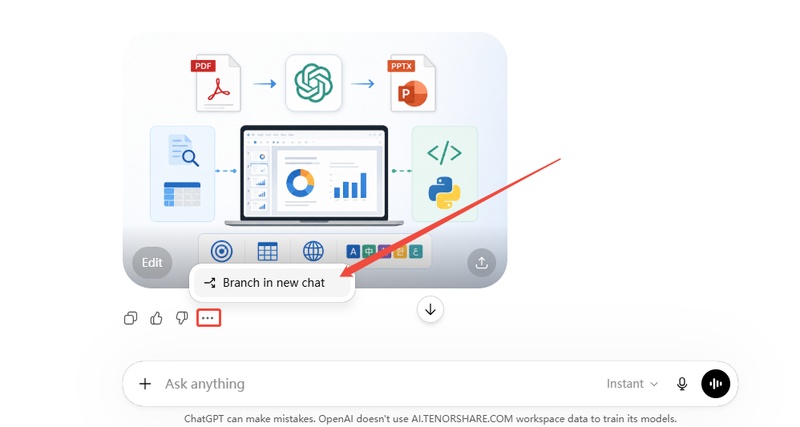

This creates a clean conversation branch that bypasses the current logical lock while preserving your previous context. Re-enter your image prompt in the new branch.
Fix 4: Start a Fresh Conversation
If branching doesn't work, open a completely new chat. Always start image generation requests in a new conversation rather than continuing long threads, as this significantly increases success rates. This clears any temporary state error tied to a specific conversation ID.

Fix 5: Browser and Environment Quick Fixes
These three environment-level issues are worth checking together. None requires more than a few minutes:
Fix 6: Check OpenAI Server Status
If ChatGPT stopped creating images entirely and none of the above fixes work, visit status.openai.com. If there's a reported outage or high-demand notice, wait for OpenAI to resolve it - local fixes won't help when the issue is server-side. This is usually the cause when the ChatGPT image generator is down for multiple users simultaneously.

Fix 7: Rewrite or Simplify Your Prompt
If ChatGPT gets stuck on creating image with a specific prompt repeatedly, the prompt itself may be triggering the issue. A few adjustments worth trying:
-
Add words like "image," "picture," or "draw" explicitly in the request
-
Remove overly complex style directions and generate a base image first, then refine
-
Break one large detailed prompt into smaller sequential requests
-
Avoid rapid-fire requests - space them at least 2 minutes apart, and try during off-peak hours for better success rates
-
Avoid referencing specific copyrighted content, real people, or anything likely to trigger a content policy block
Create Visuals Without the Wait: Try Diagrimo

Diagrimo is a text-to-visual tool that turns plain-language descriptions into clean, easy-to-understand visuals in seconds. No queue. No spinning loaders. Just type what you want to show, and Diagrimo renders it right away.

It's built for anyone who wants to communicate ideas visually without needing a design background. Here's what you can create with Diagrimo:
-
Concept visuals for presentations and pitches
-
Comparison charts to highlight differences between options
-
Visual summaries of ideas, plans, or research
-
Simple diagrams to explain processes or relationships
-
Aesthetic visuals for social media, reports, and content
Diagrimo keeps things clear and accessible. The output looks polished by default and is easy for any audience to read at a glance. If you regularly put together presentations, content, or reports and want visuals that land without the effort, try Diagrimo free.
Final thoughts
Most ChatGPT stuck on creating image issues trace back to a conversation state bug, browser environment conflict, or a server-side outage. Work through the fixes above in order - the mobile app stop method and branching to a new chat resolve the majority of cases quickly. For polished, structured visuals without the wait, give Diagrimo a try.

- AI text-to-visuals turns ideas into diagrams or infographics.
- Customizable styles match your brand and presentation tone.
- Share anytime by exporting in various formats and a link.
- No design skills needed for presentations, teaching, or reports.

FAQs
-
Why does ChatGPT say "creating image" but never finish?
-
Why is ChatGPT taking forever to generate images?
-
Why does ChatGPT say image created but no image appears?
-
What causes ChatGPT Images 2.0 not loading?
-
Why is ChatGPT stuck on stop button?
-
What to do if the ChatGPT image generator is down?
The request is likely stuck in a server queue. Start a new chat, use the mobile app to stop the process, or check status.openai.com for any reported outages.
ChatGPT may be slow if a "think" or "pro" model is analyzing large or complex inputs before generating the image.
The image was generated but failed to render in the chat. Check your ChatGPT Library in the left sidebar. It may already be there.
The most common causes are server load, wrong model selection, or a free-plan limitation. Switch to a new chat and confirm GPT-4o is selected.
This is a known web UI sync issue. Open the ChatGPT mobile app, find the same chat, and tap stop or send a message from there.
Visit status.openai.com to check for a platform-wide incident. If confirmed, wait for OpenAI to resolve it. For structured visuals in the meantime, Diagrimo is a reliable alternative.
