The Onion diagram is a simple but powerful way to show how different parts of a system relate to each other. It explains which elements sit at the center of a process and which ones support it from the outside. In this guide, you will learn what this diagram is, where it is used and how to create an Onion diagram in PowerPoint and Diagrimo.
What is Onion Diagram?
As its name suggests, an onion diagram takes its name from its onion-like shape. Just as an onion has multiple layers, an onion diagram has hierarchical layers. These layers show the dependencies between components. This diagram is widely used to visually represent the relationships among entities within a system or organization. The central circle represents the core body, and the subsequent outer circles represent related items, stakeholders, and the level of detail, from most significant to least significant.

How an Onion Diagram is Structured?
An Onion Diagram is made up of three simple parts.
Inner Circle
This is the core concept. It may be a product, a project goal or the main subject.
Concentric Layers
These rings expand outward. They contain related parts, people or processes. Items placed closer to the center usually carry more weight or influence.
Connecting Lines
These lines highlight relationships or dependencies between the layers.
When combined, the layers create a clear map of how a system works from the inside out.
How to Make Onion Diagram Step-by-Step?
You can draw this onion diagram in any tool that supports circles and text. Still, using a modern tool will save time and give better results. Below are two methods that work well.
Method 1: Create an Onion Diagram with Diagrimo Automatically
Diagrimo lets you create dynamic diagrams by transforming text into visuals with AI. It can help you represent complex information in colorful, clean, and easy-to-understand diagrams within seconds. The best part is that you can make desired changes to the diagrams and export them into multiple formats. Moreover, its collaboration features let you easily share your visuals with others.
Key Features of Diagrimo
How to Create an Onion Diagram in Diagrimo?
- Enter the text you want to transform into a visual, then select it.
-
Hit the Visualize icon.
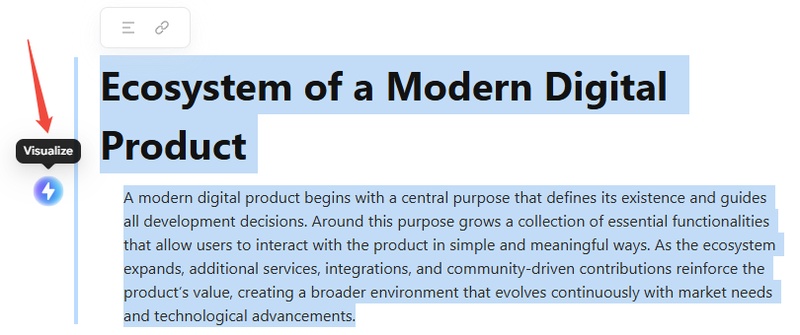
-
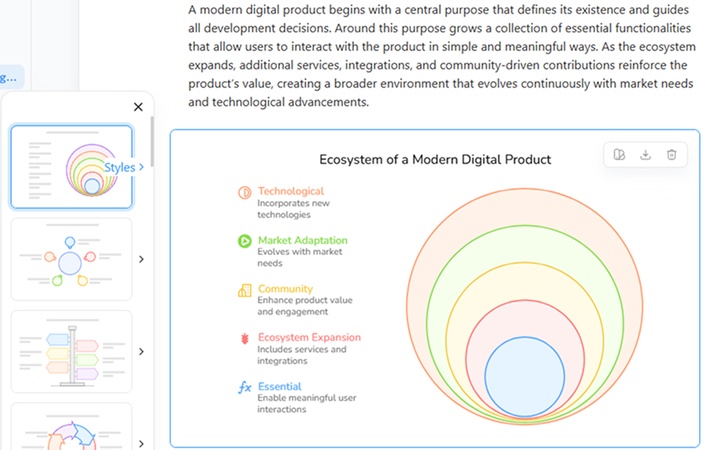
Diagrimo will automatically generate an onion diagram based on the content you entered.
-
You can further customize the generated onion diagram by adding new layers, adjusting the design style and editing the text.


Method 2: Create an Onion Diagram in PowerPoint Manually
PowerPoint is another good option for creating diagrams quickly without much effort. The following steps demonstrate how to create an onion diagram in PowerPoint using SmartArt:
- Launch PowerPoint and go to the slide you want to add the onion diagram to.
-
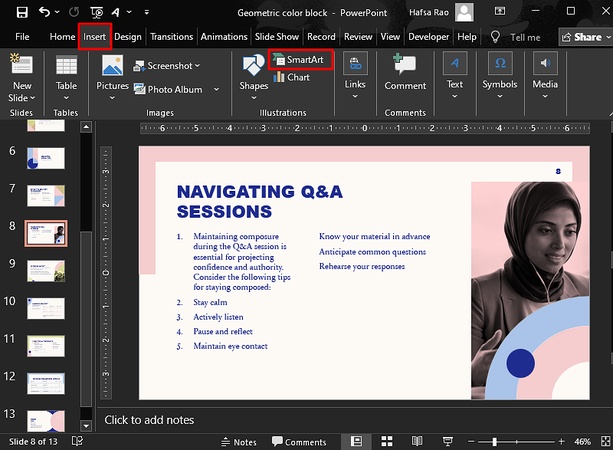
Go to the Insert tab and click on SmartArt.
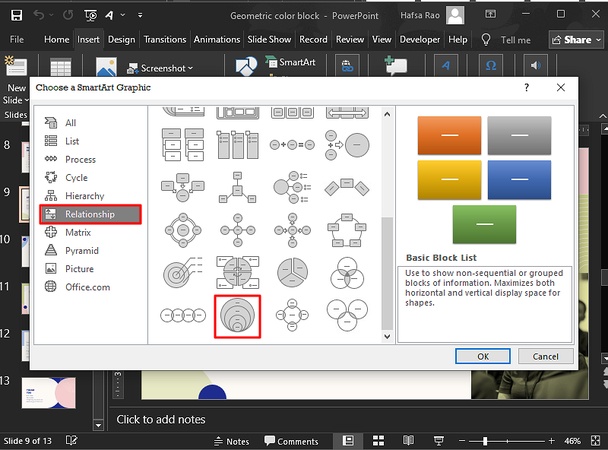
- Switch to the Relationships tab.
-
Select the onion-shaped graphic and add the desired text.
- After the diagram appears, you can add or remove layers by right clicking the shape. You can also adjust colors and styles from the SmartArt Design tab to refine the overall look.


Common Uses of an Onion Diagram
Since the onion diagram is pretty dynamic and has multiple use cases, the following are its common use cases:
Stakeholder Analysis
You can also use an onion diagram for stakeholder analysis by placing the key stakeholders in the center of the circle and less significant ones in the outer layers, based on their roles.
Project Management
An Onion Diagram can help project teams clarify the scope and priority of tasks. The core shows the main project goal, while the outer layers represent essential tasks, supporting tasks and items planned for later stages. This makes it easier to align expectations and keep the team focused on what matters most.
Product Development
With the help of an onion diagram, you can easily visualize the core functionality of a project and plan your development strategies by identifying commonalities between different ideas. For example, you can place the product itself in the center, with the development steps radiating outward from the center ring to the outer rings in order of significance.
Organizational Hierarchies
In a company, there are multiple ranks for employees. An onion diagram gives us a simple way to demonstrate those ranks in hierarchies. For example, you can put the company's name in the center, with the executives and employees radiating outward from the center to the outer rings by rank.
Business Strategy and Core Competencies
Companies can place their most important capability or value proposition at the center, then expand outward to show supporting skills, processes and resources. This makes strategic planning clearer during team discussions or presentations.
Conclusion
Onion diagrams are the simplest yet most powerful ways to show relationships, dependencies, and hierarchies within organizations. From mapping product development stages to analyzing stakeholders, you can use this layered model to communicate complex information in a simple, clean, and understandable way.
With the help of Diagrimo and PowerPoint, creating onion diagrams has become easier than ever. Especially if you prefer AI-generated diagrams with a hands-on customization option, using an AI infographic generator is the best option for you.

- AI text-to-visuals turns ideas into diagrams or infographics.
- Customizable styles match your brand and presentation tone.
- Share anytime by exporting in various formats and a link.
- No design skills needed for presentations, teaching, or reports.

FAQs
-
Is an Onion Diagram the same as a Venn Diagram?
Where can I find Onion diagram templates?
-
What is the difference between an Onion diagram and an Organizational chart?
Which is the best Onion diagram maker?
How to make onion diagram manually?
No, an onion diagram is not the same as a Venn diagram, but they are closely related. An Onion diagram depicts hierarchy, containment, or proximity, whereas a Venn diagram focuses on the overlaps between items, depicting commonalities and differences.
You can find onion diagram templates in diagramming tools like Figma and Miro, as well as on many online sites.
An organizational chart depicts the relationships, roles, and responsibilities of an organization's members. The Onion diagram, on the other hand, shows the dependency among the processes.
Based on my experience, I recommend using Tenorshare AI Diagrimo to create Onion diagrams directly from your text.
Open a drawing tool, draw a small circle, and surround it with subsequent circles. Now, add labels to each circle.
