Google's NotebookLM has rapidly become a favorite tool for students and researchers by turning static documents into interactive "notebooks" capable of answering questions and summarizing complex data. Recently, the platform added a highly requested feature: AI-generated Flashcards.
This guide will walk you through exactly what this new feature does, how to use it to create instant study aids, and other tools you might find useful for your study sessions.
What Is the New Flashcards Feature in NotebookLM?
The Flashcards feature is part of NotebookLM's "Studio" suite, which is a set of tools designed to help you actively engage with your uploaded documents rather than just reading them.

Unlike generic AI flashcard generators that might pull information from the broader internet (risking "hallucinations" or irrelevant facts), NotebookLM's flashcards are grounded entirely in your specific sources. Whether you upload a PDF textbook, a Google Doc of lecture notes, or a transcript of a recorded meeting, the AI generates questions and answers derived strictly from that material.
How to Make Flashcards on NotebookLM
Creating a study deck in NotebookLM is a streamlined process that takes you from raw notes to an interactive quiz in seconds. Here is exactly how to do it:
-
Step 1: Import Your Source Material
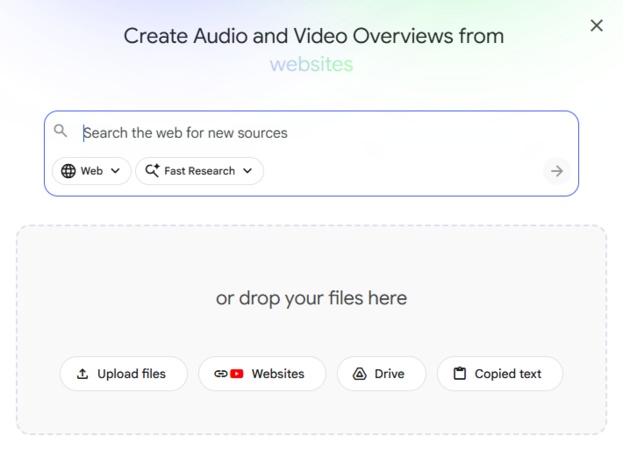
Start by creating a new notebook. As shown in the image, you have several flexible ways to add content to ground your flashcards:
-
Upload files: Drag and drop PDFs or text files directly.
-
Websites: Paste a URL to generate questions from a specific webpage.
-
Drive: Select documents directly from your Google Drive.
-
Copied text: Paste text from your clipboard if you don't have a file ready.
-
-
Step 2: Generate the Flashcards
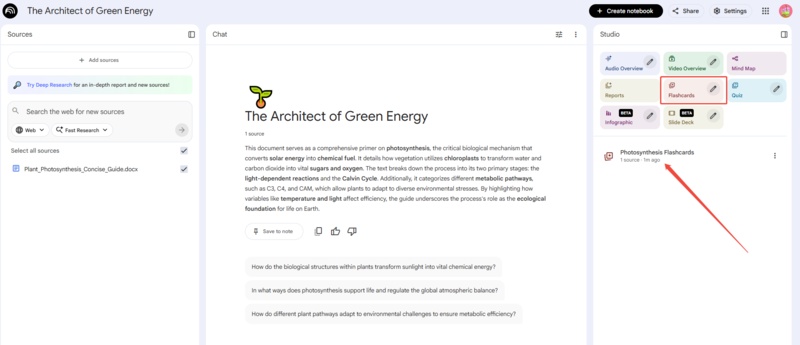
Once your sources are added, look for the Studio panel on the right side of the screen. You will see various tiles for different outputs (like Audio Overview or Mind Map). Simply click the "Flashcards" tile. The AI will instantly analyze your sources and generate a deck for you.
-
Step 3: Review and Deepen Understanding
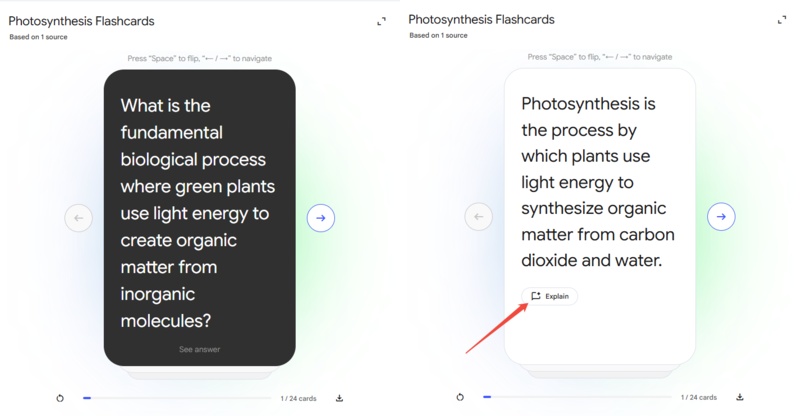
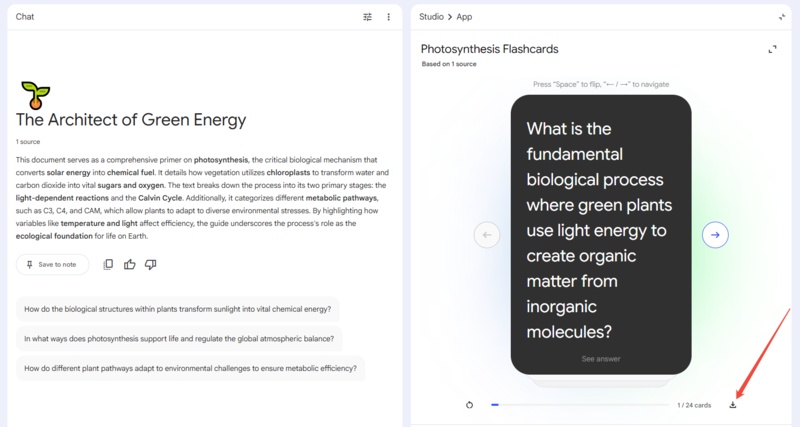
The flashcards interface allows you to flip through cards using the arrow keys or spacebar.
Standard Review: Read the question on the front and flip to see the concise answer.
The "Explain" Feature: If an answer feels too brief or you don't understand the concept, click the "Explain" button located on the answer side of the card. This triggers a chat response where NotebookLM provides a detailed explanation of the topic, pulling more context from your source material so you fully grasp the "why" behind the answer.
-
Step 4: Customize Your Study Session
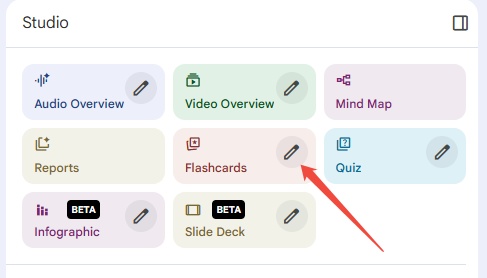
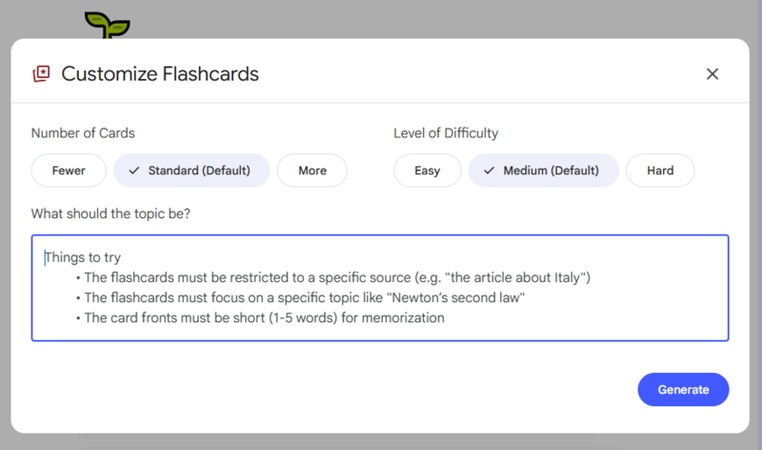
If the generated questions aren't quite right for your needs, you can refine them using the Edit (pencil icon) button located on the Flashcards tile in the Studio. This opens the Customize Flashcards menu, where you can adjust:
-
Number of Cards: Choose between "Fewer," "Standard," or "More" depending on how much time you have.
-
Level of Difficulty: Switch between "Easy," "Medium," or "Hard."
-
Topic Focus: Use the text box to type specific instructions, such as "Generate questions only about the chemical formulas mentioned."
-
-
Step 5: Save and Export
By default, your progress is saved within the Notebook. However, if you want to take your cards elsewhere, look for the Download icon at the bottom of the flashcard viewer. Clicking this will export your entire deck as an Excel document, making it easy to transfer the data into other study apps or spreadsheets.


Best NotebookLM Alternatives for AI Flashcards
1. Knowt
Often called the "free Quizlet killer," Knowt has rapidly become a student favorite. It allows you to upload lecture videos, PDFs, and notes to instantly generate flashcards and practice tests.
-
Why use it: Unlike many competitors, Knowt offers its "Learn Mode" and spaced repetition features completely for free. It also imports existing Quizlet sets seamlessly.
-
Best for: Students who want a robust, free mobile app for studying on the go.
2. Gizmo
Gizmo takes a unique approach by using "gamified" AI learning. Instead of just flipping cards, you engage in interactive quizzes that feel more like a game, which helps maintain focus during long study sessions.
-
Why use it: It uses active recall and spaced repetition algorithms to ensure you don't just memorize answers but actually retain the information long-term.
-
Best for: Visual learners and students who struggle with motivation and need a more engaging interface.
3. Revisely
Revisely is a powerful tool specifically designed to convert documents into quizzes and flashcards. Its standout feature is its flexibility in export options
-
Why use it: After generating flashcards from your slides or notes, Revisely allows you to export them directly to Anki or Quizlet. This makes it the perfect bridge for users who want AI generation but prefer studying in the Anki ecosystem.
-
Best for: Medical students and heavy Anki users who need a fast way to create decks from lecture slides.
4. Quizlet (Magic Notes)
The industry standard for flashcards has integrated AI through its "Magic Notes" feature. By uploading your class notes, Quizlet automatically generates flashcards, outlines, and sample tests.
-
Why use it: It has the largest library of pre-made decks in the world. If you are studying a common subject, you can often combine your AI-generated cards with millions of existing community decks.
-
Best for: Students who want a polished, all-in-one ecosystem with a massive community database.
Bonus Tool: Visualize Your Ideas with Diagrimo

Struggling with messy notes, scattered ideas, or long paragraphs that are hard to explain? Diagrimo is built to solve exactly that. This AI-powered diagram generator instantly turns raw thoughts, outlines, or complex text into clean, easy-to-understand visuals, so you can stop overthinking structure and start communicating clearly. Whether you're planning an article, organizing a project, or trying to explain a concept to others, Diagrimo helps you move from confusion to clarity in seconds.

Why Users Choose Diagrimo:
-
Turn Chaos into Structure: Convert unorganized ideas into clear diagrams automatically
-
Save Hours of Manual Work: No dragging shapes or formatting---AI does it for you
-
Explain Ideas Faster: Visual diagrams make complex concepts easier to understand
-
No Design Skills Needed: Perfect for beginners and non-designers
-
Presentation-Ready Results: Clean visuals you can use in blogs, slides, or documents
-
Built for Thinkers & Creators: Ideal for writers, educators, students, and planners who need clarity fast
Final thoughts
NotebookLM has evolved from a basic document assistant into a powerful active learning platform. Grounding questions directly in your source material it eliminates irrelevant noise and drastically cuts down on prep time. This allows you to focus purely on mastering the content rather than organizing it, ensuring every study session is accurate, efficient, and impactful.
To further enhance your understanding, Diagrimo offers an exceptional way to visualize complex ideas that text alone cannot capture. Instantly turning your notes into clear, structured diagrams, it helps you grasp difficult concepts faster and ensures your final understanding is as visual as it is factual.

- AI text-to-visuals turns ideas into diagrams or infographics.
- Customizable styles match your brand and presentation tone.
- Share anytime by exporting in various formats and a link.
- No design skills needed for presentations, teaching, or reports.

FAQs
Is NotebookLM free to use?
-
Can I access NotebookLM flashcards on my phone?
How accurate are the flashcards?
-
Can I edit the flashcards after they are generated?
Yes, the standard version is free for personal projects and includes up to 50 sources per notebook. However, Google now offers paid tiers (Plus, Pro, and Ultra) for users who need higher limits and access to the most advanced Gemini models.
Yes. Google has launched a dedicated NotebookLM app, making it easy to create and review flashcards on your phone. You can also still access the mobile-optimized website if you prefer not to download the app.
Powered by Google's latest Gemini models, the flashcards are highly accurate to your specific documents. However, since AI can occasionally miss nuances, it is best to verify answers using the "Explain" feature or your original notes.
You cannot currently rewrite the text of individual cards manually within the interface. However, you can regenerate the deck with specific instructions (e.g., "Focus on definitions").
