Making the leap from ChatGPT to Claude is an exciting upgrade, but leaving behind months of personalized instructions and chat history can be incredibly frustrating. The good news is that you don't have to start over. This complete step-by-step guide will show you exactly how to cancel your ChatGPT account cleanly and seamlessly transfer your digital "memory", including your unique tone, workflow preferences, and ongoing projects, straight into Claude so it understands you perfectly from day one.
Why Switch from ChatGPT to Claude?
While ChatGPT remains a popular choice, many users are switching to Anthropic's Claude for its strong ethical principles and rapidly improving capabilities. Anthropic recently earned massive respect by refusing a Pentagon ultimatum to allow Claude for mass surveillance and autonomous weapons, choosing to lose massive government contracts to OpenAI rather than compromise their values. Beyond this firm ethical stance, Claude has received frequent updates that make it incredibly effective for nuanced writing, complex coding, and deep analysis in daily work.

How to Transfer ChatGPT to Claude?
Method 1: The Fast Route (Using Claude's Built-in Import Tool)
Claude recently rolled out a native feature that makes transferring your AI memory incredibly simple. This method takes just a few minutes.
-
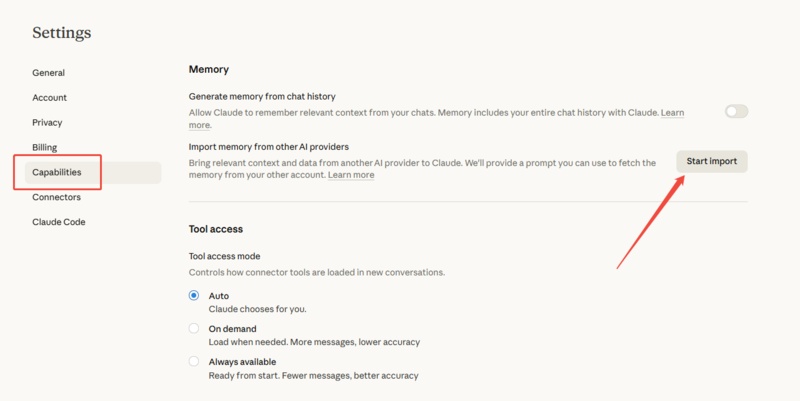
Step 1: Access Claude's Import Tool
Log in to your Claude account. Click on your profile name in the bottom left corner and select Settings. Navigate to the Capabilities tab. Here, you will see a new section called Import memory from other AI providers. Click the Start Import button.
-
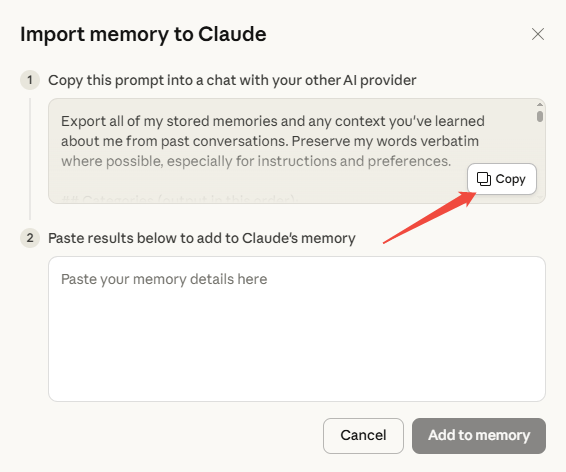
Step 2: Copy Claude's Custom Prompt
A pop-up window will appear containing a giant, pre-written prompt designed specifically for this task. Simply click the Copy button to copy this prompt to your clipboard.
-
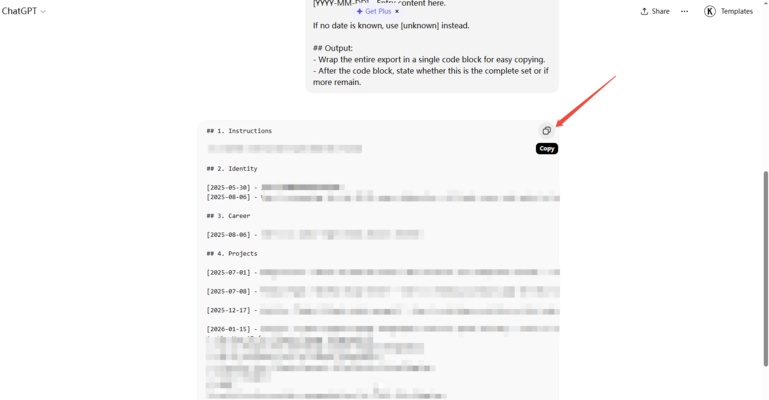
Step 3: Extract Data from ChatGPT
Open ChatGPT in a new tab and paste the copied prompt into a new chat. ChatGPT will analyze your history and generate a detailed code block categorized by your instructions, identity, career, projects, and formatting preferences.
-
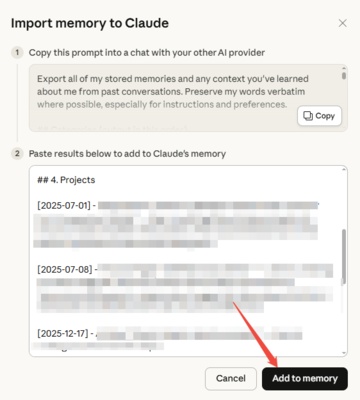
Step 4: Paste and Save to Claude
Once ChatGPT finishes generating the code block, copy the entire output. Go back to the Claude import pop-up, paste the results into the step 2 box, and click Add to memory.


Method 2: The Quick Extraction Route (Prompt-Based)
Inspired by YouTube creator @willfrancis, this method uses clever prompting directly inside ChatGPT to extract your profile before moving it over.
-
Step 1: Extract Memory from ChatGPT
Log into ChatGPT and use a two-part prompt. First, ask ChatGPT to extract your "stored memories" and "custom instructions." Next, use a second prompt asking ChatGPT to generate a detailed report based on your chat history, including your professional background, writing style, favorite tools, and how you organize information.
 Prompt 1:
I'm moving to a different AI assistant and I need to export everything you know about me. Please provide ALL of the following in a single, clearly structured response:
1. STORED MEMORIES
List every single memory you have stored about me. Write them out verbatim, exactly as they appear in your memory. Don't summarise or paraphrase --- I want the raw entries.
2. CUSTOM INSTRUCTIONS
Reproduce my full custom instructions exactly as written --- both:
-
"What would you like ChatGPT to know about you?"
-
"How would you like ChatGPT to respond?"
If either field is empty, say so.
3. PREFERENCES AND CONTEXT
Based on our interactions, list any preferences, recurring context, or personal details you've picked up that might not be in my stored memories. This includes things like:
-
My profession and industry
-
Tools or platforms I use regularly
-
Writing style preferences
-
How I like information structured
-
Topics I frequently ask about
Any specific formatting preferences
Be thorough. I'd rather have too much than miss something important.
Prompt 2:Now I need you to go deeper. Based on the full history of our conversations --- not just your stored memories --- provide a summary of:
1. WRITING STYLE PROFILE
How do I write? What's my tone, sentence length, vocabulary level, and any distinctive patterns in how I communicate?
2. RECURRING TASKS
What types of tasks do I most frequently ask you to help with? List them in rough order of frequency.
3. PROJECTS AND WORKFLOWS
What ongoing projects or workflows have come up repeatedly? Include any context about what stage they're at or how I approach them.
4. OPINIONS AND PREFERENCES
What opinions, preferences, or strong views have I expressed that would help a new AI assistant understand how I think?
5. THINGS TO AVOID
Based on our interactions, is there anything I've pushed back on, corrected you about, or asked you not to do? List any "don't do this" patterns.
Format everything clearly with headers. This will be pasted into another AI's memory system, so write it in a way that's useful as a reference document rather than a conversation.
-
-
Step 2: Manually Clean and Edit (Crucial Step!)
Do not paste ChatGPT's raw output directly into Claude. Copy the generated report into a Word or Google Doc and manually curate it. Delete irrelevant data (like old, completed tasks or one-off questions). Keep only your core traits, tone, workflows, and formatting preferences. This eliminates "noise" that could confuse Claude later.
-
Step 3: Import to Claude's Memory
Go to your browser and visit the dedicated link: claude.com/import-memory. Click the Start importing to Claude button to open the memory settings. Ignore the default prompts provided in the pop-up; instead, paste your manually cleaned document into the input box and click save.
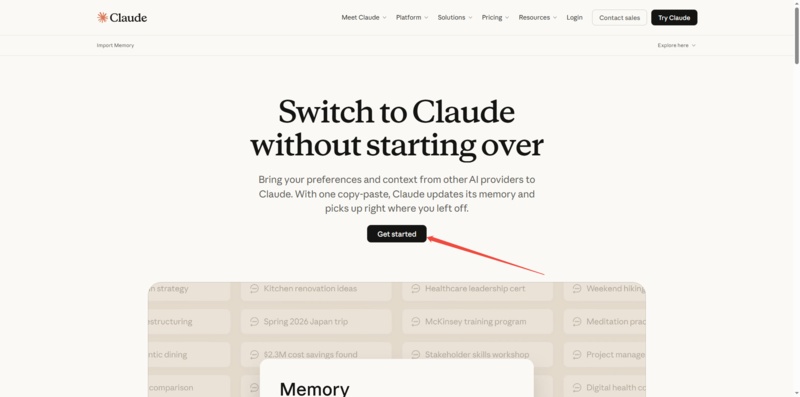


Claude's global "Memory" feature is currently restricted to paid users. If you use the free version of Claude, you can still use this method! Keep your cleaned document saved as a "Personal Manual." Every time you start a new, important chat, simply paste that text as your first prompt, so Claude instantly understands your background and preferences for that session.
How to Cancel ChatGPT Subscription?
The cancellation steps depend on how you originally signed up for your account.
For Personal Web Subscriptions (via chatgpt.com):
-
Log in to ChatGPT and click your profile icon.
-
Go to Settings, then navigate to the Account tab.
-
Click the Manage dropdown menu and select Cancel Subscription.
For Mobile App Subscriptions:
If you subscribed using your phone, you cannot cancel through the website. You must cancel directly through your Apple App Store (iOS) or Google Play Store (Android) subscription settings.
For Business Subscriptions:
-
Log in to ChatGPT and click your profile icon.
-
Select Workspace settings and go to the Billing tab.
-
Click the Manage plan dropdown menu and select Cancel subscription.
How to Delete ChatGPT Account?
If you want to completely sever ties with OpenAI and wipe your data from their servers, you can delete your account.
-
Open ChatGPT and click on your Profile Picture.
-
Go to Settings.
-
Navigate to the Account tab.
-
Scroll down and click Delete account.
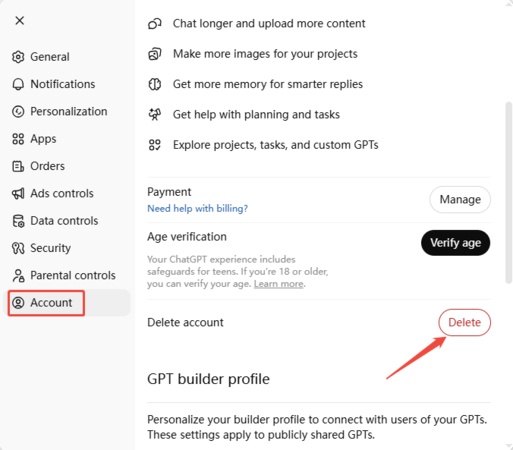
- Follow the on-screen prompts to permanently erase your account. Remember, this action cannot be undone, and all your chat history will be lost forever.

Bonus Tool: Why You Should Try Diagrimo
Switching to a smarter AI is a great first step toward boosting your productivity, but pairing it with the right visual tool takes your workflow to the next level. If you frequently map out complex ideas or coding architectures after a brainstorming session with Claude, you need to try Diagrimo. This intuitive productivity tool helps you effortlessly turn those AI-generated concepts into stunning diagrams, mindmaps, and visual plans. By combining Claude's advanced reasoning with Diagrimo's seamless visual mapping, you can instantly organize your thoughts and execute your projects faster than ever.

Final thoughts
Switching from ChatGPT to Claude doesn't mean starting from scratch. By taking a few minutes to export your data and extract your core "user manual," you can train Claude to perfectly match your writing style and workflow from day one. And once you are settled in with Claude's advanced reasoning, remember to pair it with a powerful visualization tool like Diagrimo. Turning your newly generated AI insights into clear, actionable diagrams will ensure your everyday productivity reaches an all-time high.

- AI text-to-visuals turns ideas into diagrams or infographics.
- Customizable styles match your brand and presentation tone.
- Share anytime by exporting in various formats and a link.
- No design skills needed for presentations, teaching, or reports.

FAQs
-
Do I have to start from scratch when switching AI assistants?
-
Is Claude's "Memory" feature available to free users?
-
Can I recover my chat history after deleting my ChatGPT account?
-
How do I cancel a ChatGPT subscription made via mobile app?
No. By exporting your ChatGPT custom instructions and memory and importing them into Claude, you can help it quickly adapt to your style and preferences.
No, the global "Memory" feature is currently restricted to paid users. Free users can save a "Personal Manual" and paste it at the start of new chats.
No. Deleting your account is a permanent action; all chat history and data will be wiped forever and cannot be undone.
You must cancel it directly through your phone's subscription management settings (Apple App Store or Google Play Store); the website cannot process these cancellations.
