Are you struggling to convert NotebookLM PDF to PPT after creating slides that look good but can't be edited at all? This is a common problem for people who use NotebookLM and then realize they need a PowerPoint file to update text, change layouts, or present their work properly. A PDF is useful, but it quickly becomes frustrating when you need flexibility.
Don't worry, this article is here to help. I'll show you simple and practical ways to turn your NotebookLM PDF into an editable PPT, explain what works best, and guide you step by step so you can fix the issue without wasting time.
Let's get started.
Why You Need to Convert NotebookLM PDF to PPT
NotebookLM does a great job of creating structured slides from your documents, but it only lets you export them as a PDF. While the slides may look neat, a PDF quickly becomes a problem when you need to make changes.
Once your slides are locked in PDF format, even basic edits become difficult. This is why many users choose to convert their NotebookLM PDF into a PowerPoint file instead.
Here's why converting to PPT really matters:
- You can edit the text easily
Fix mistakes, update information, or rewrite content without starting over.
- You can change slide layouts and design
Rearrange elements, apply themes, and match your brand or presentation style.
- You can add animations and transitions
PDFs don't support presentation effects, but PPT does.
- You can customize slides for different audiences
Create multiple versions of the same presentation for meetings, classes, or clients.
- You save time and effort
No need to rebuild slides manually from scratch.

By converting your NotebookLM PDF to PPT, you turn a static file into a flexible presentation that's easy to edit, improve, and present with confidence.
Top Methods for Converting NotebookLM PDF to PPT
There are a few practical ways to convert a NotebookLM PDF into a PowerPoint file. The right method depends on how much time you have and how editable you want the final slides to be. Below are the two most common and reliable options people use.
1. Use Canva's PDF to PPT Conversion (Manual But Effective)
Canva is a popular design tool that lets you upload a PDF and turn it into editable slides. While it requires a bit of manual work, it's beginner-friendly and doesn't need technical skills. Many NotebookLM users take their exported PDF and edit it in Canva because it makes text and visuals more flexible.
-
Step 1. Open Canva and log in
Go to Canva and sign in to your account. You can use the free version, but Canva Pro gives you extra features like better text extraction and design control.
-
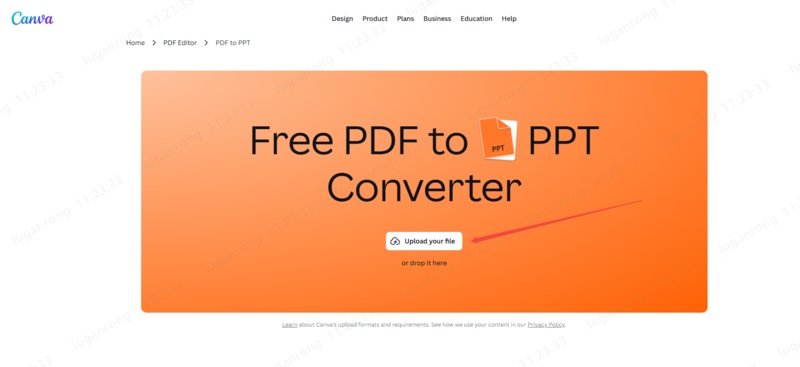
Step 2. Upload your NotebookLM PDF
Click the Upload button on the homepage and select the PDF file you exported from NotebookLM. Canva will start processing it right away.
-
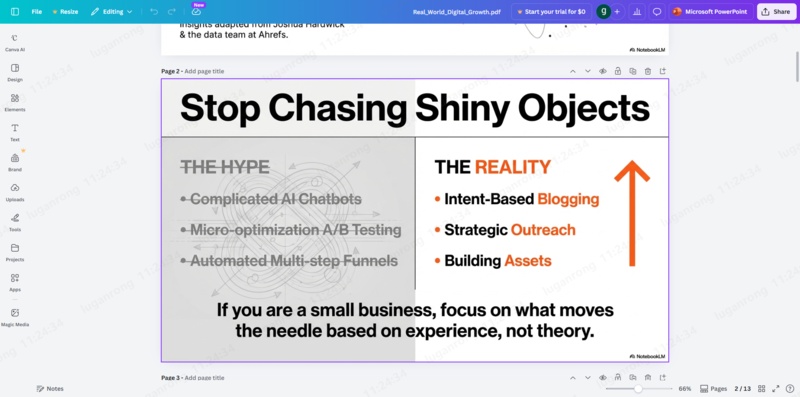
Step 3. Let Canva turn pages into pages
Once uploaded, Canva automatically converts each PDF page into a separate pages. This gives you a clean page layout.
-
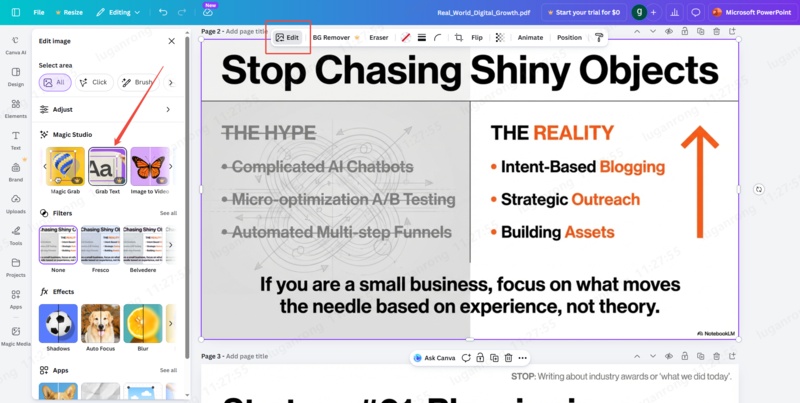
Step 4. Edit the text and design
Click on text boxes to edit wording, fix mistakes, or change fonts. If some text appears as an image, use Canva's "Grab Text" or AI text recognition tools to make it editable. You can also replace images, icons, and colors to match your style.
-
Step 5. Export your slides as a PPTX file
When everything looks good, click Download, choose PPTX as the file format, and save it. Your NotebookLM PDF is now an editable PowerPoint presentation.
2. Use AI-Powered PDF to PPT Tools
AI-powered conversion tools use machine learning to analyze your NotebookLM PDF and rebuild it as a more editable PowerPoint slide deck. These tools tend to be faster and more automatic than manual methods, and some even preserve layout, fonts, and slide structure.
Some popular AI PDF-to-PPT tools include:
-
ReSlide: AI tool for turning NotebookLM and other AI slide PDFs into editable PPTs.
-
Fotor AI PDF to PPT: Uses AI to transform PDF into slides and lets you customize afterward.
-
AIezzy: Free AI PDF to editable PPT converter online.
-
QuillBot PDF to PPTX: Simple online tool that preserves layout and quality.
Below is a step-by-step using Fotor AI PDF to PPT as an example:
-
-
Step 1. Go to the Fotor AI PDF to PPT Tool:
First of all, got to Fotor AI PDF to PPT tool page on your browser.
-
Step 2. Upload your PDF and Write Prompt
Now you will have to upload your PDF and write prompt to command AI to convert your PDF into PPT. You can use prompts like "Convert this PDF into easy to understand and visually appealing PPT file." You can change the prompt according to your needs.
-
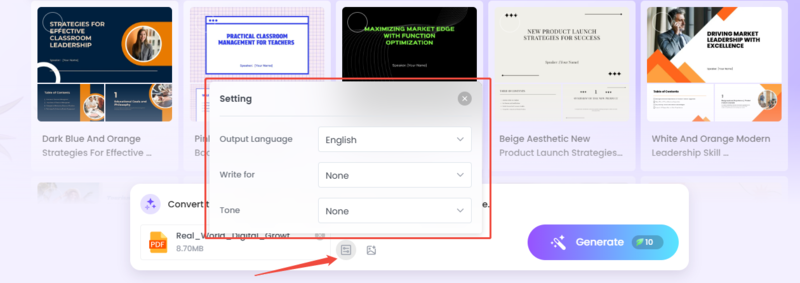
Step 3. Choose Conversion Settings
Click on the Settings icon and choose Language, What are you writing for, and Tone.
-
Step 4. Start Conversion
Now, hit the Generate button and let AI convert your PDF into PPT file.
-
Step 5. Download your PPT
Once ready, download the new PowerPoint file and open it in PowerPoint or Google Slides. You'll now have editable text, images, and layouts.


Bonus: Use Diagrimo to Visualize Your Ideas for a Perfect PPT

If you want your slides to look professional and easy to understand, visuals matter just as much as text---especially in presentations. Instead of spending hours dragging and dropping shapes or trying to design diagrams manually, you can use Diagrimo, an AI-powered text-to-visual tool that turns your ideas into polished diagrams and visuals in seconds.

Diagrimo doesn't just build visuals, it understands your text and automatically suggests the best visual formats (like mind maps, timelines, or infographics) that match your content. Once generated, these visuals can be customized, styled, and exported for use in your slides.
Here's how Diagrimo helps you make a better PPT:
-
AI Text Understanding: It analyzes your written content and chooses the right diagram type to match your ideas.
-
Professional Visuals Instantly: AI builds clean, structured graphics---no design skills needed.
-
Easy Editing & Customization: Change colors, layouts, fonts, and elements to match your presentation style.
-
Export for PPT: Once your visuals are ready, you can export them and insert into your PowerPoint file to make your slides more engaging.
Conclusion
Converting your NotebookLM PDF to an editable PowerPoint makes your slides flexible, professional, and easy to update. Whether you use Canva or an AI-powered PDF-to-PPT tool like Fotor, having control over text, layouts, and images ensures your presentation is ready for any audience.
To take your slides to the next level, Diagrimo is a great companion. It helps you create polished diagrams, flowcharts, and visuals that make your PPT more engaging and easier to understand. Combining a converted PPT with Diagrimo visuals gives you professional, high-quality presentations in less time.

- AI text-to-visuals turns ideas into diagrams or infographics.
- Customizable styles match your brand and presentation tone.
- Share anytime by exporting in various formats and a link.
- No design skills needed for presentations, teaching, or reports.

FAQs
-
Can I convert a NotebookLM PDF to Google Slides instead of PowerPoint?
-
Will converting my PDF affect images or charts in NotebookLM slides?
-
Is it safe to upload my NotebookLM PDFs to online conversion tools?
-
Can I batch-convert multiple NotebookLM PDFs to PPT at once?
-
Do I need technical skills to edit the PPT after conversion?
Yes. Most AI or PDF-to-PPT tools let you export your converted slides as PPTX files, which can then be uploaded directly to Google Slides. Once uploaded, you can edit, share, and collaborate online just like a regular presentation.
It depends on the tool you use. AI-powered converters like Diagrimo or Fotor generally preserve images, charts, and diagrams accurately, while manual tools like Canva may require slight adjustments to maintain layout and sizing.
Most reputable platforms, including Canva and Diagrimo, use secure servers and delete files after processing. For sensitive information, double-check the platform's privacy policy or consider using offline software if privacy is critical.
Some AI-based tools allow batch processing, saving you time if you have several PDFs. Manual tools like Canva usually require uploading and converting one file at a time.
Not at all. Once your NotebookLM PDF is converted, the slides are fully editable in PowerPoint, Google Slides, or Canva. Basic knowledge of adding text, images, and rearranging slides is enough to make professional presentations.
