Do you struggle to explain your content strategy clearly in presentations? Many marketers, creators, and business teams find it hard to show how their content ideas connect. This is where a content pillars presentation becomes useful. It helps organize ideas, align teams, and show a clear content direction in a simple visual way.
In this article, you'll learn what content pillars are, how to create an effective content pillars presentation, and how tools like Diagrimo can help you turn ideas into clean, professional visuals without extra effort.
Let's get started.
What Are Content Pillars?
Content pillars are the main topics or themes that guide all of your content. They act as the foundation of your content strategy and help you decide what to create, post, or share. Every blog, social media post, video, or email usually fits under one of these main pillars.

For example, a brand might use content pillars such as education, product updates, customer stories, and industry insights. Each pillar supports smaller content ideas, making planning easier and more organized.
Using clear content pillars helps keep your messaging consistent, saves time when planning, and ensures your content stays focused on what matters most to your audience.
How to Build a Content Pillars Presentation in PowerPoint
You can create a clear and professional content pillars presentation template in PowerPoint by following these simple steps:
Step 1: Start a New Presentation
Open PowerPoint on your computer. On the welcome screen, select "Blank Presentation" to begin with an empty slide.

Step 2: Create the Slide Structure
Look at the slide preview panel on the left. You'll see one slide already created. Click New Slide at the top left to add some more slides, according to your needs. You can also choose theme for each slide.

Now click Slide 1 and enter your presentation title in the title box.

Step 3: Add Your Content Pillars
Go to Slide 2, which will display your main content pillars.
Instead of drawing shapes manually:
-
Click Insert
-
Select Table
-
Choose row and columns according to your needs.
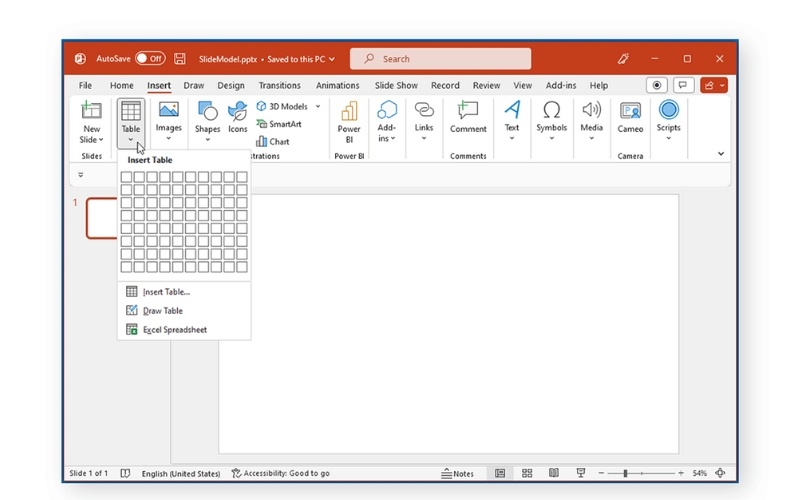

Type the name of each content pillar into a column, such as Education, Tips, or Behind the Scenes. This keeps the layout clean and organized.
Step 4: Apply a Professional Design
Once you have written the content, choose any slide that contains text.
-
Go to the Home tab
-
Click Designer on the right side
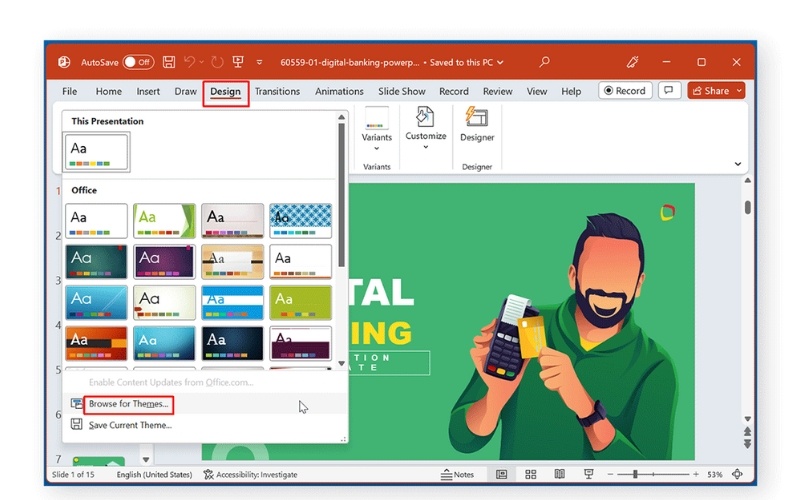

PowerPoint will suggest multiple layout styles. Click one you like, and PowerPoint will automatically adjust the layout to look more professional.
Step 5: Save Your Presentation
Once you are done with everything, click File in the top-left corner. Select Save, name your file, and choose a folder.
While PowerPoint works, building visuals manually can be time-consuming and messy if ideas change often.
Beyond PowerPoint: How Diagrimo Speeds Up Presentations
Building a content pillars presentation in PowerPoint usually takes time. You first plan the structure, then write content, and finally design visuals slide by slide. This manual process can slow you down, especially when you want clean and engaging layouts.
Diagrimo offers a faster and easier way to handle this work. It turns written content into clean, organized visuals almost instantly, working like a personal designer that handles structure for you. By preparing visuals before moving content into PowerPoint, Diagrimo reduces manual design tasks, makes collaboration smoother, and helps you create clear and engaging presentations without changing how you normally work.

By using Diagrimo alongside PowerPoint, you spend less time on layout work and more time focusing on clear messaging and strategy. It's a practical way to improve presentation speed without changing your existing workflow.
Visualizing Text in PowerPoint With Diagrimo Charts
Here's how to use Diagrimo to create a content pillars presentation sample:
-
Step 1: Get Started with Diagrimo
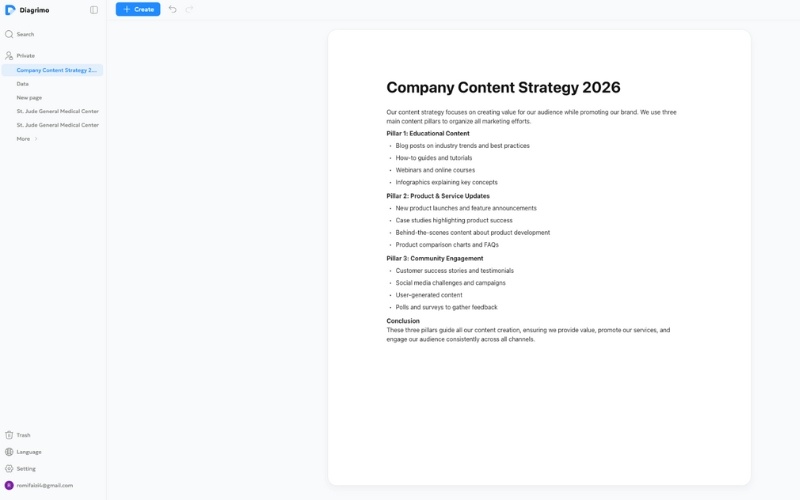
Open Diagrimo in your browser and click Create to start a fresh workspace for your content. Now type or paste your key points and related ideas into the editor. You can use headings, bullet lists, or simple text to organize the main themes.
-
Step 2: Let AI Draft Text
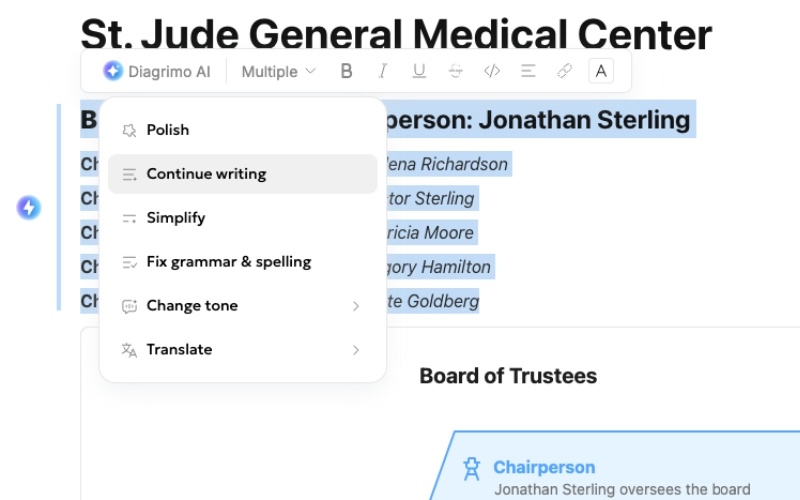
If you're unsure what to write, use Diagrimo's AI assistant to draft or refine your paragraphs. It can improve clarity, fix grammar, and make your strategy easier to visualize later.
-
Step 3: Select Text to Visualize
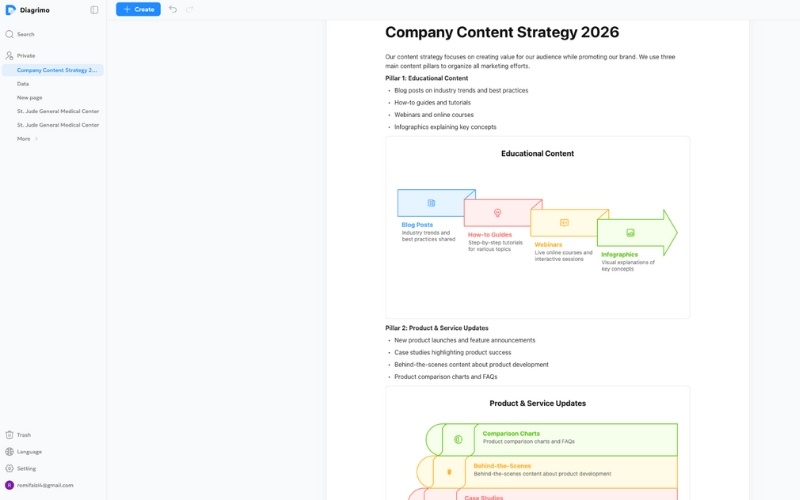
Highlight the sentences you want to turn into diagrams, such as your main points or subpoints, then click the Visualize icon. Diagrimo's AI reads your text and suggests diagram styles based on your structure.
-
Step 4: Customize Layout, Color, Font, etc.
Browse the generated options in the sidebar. Pick a layout that suits your content pillars (for example, hub & spoke, column segments, or pyramid). You can change styles anytime if you need a different look. You can also click on any element to edit it directly. Change colors, fonts, background, and spacing to match your brand or presentation style.

-
Step 5: Export or Share
When your visuals look great, export your work as a PDF or image file for use in PowerPoint or other presentation tools. You can also share a link with teammates for feedback or collaboration.


Final Thoughts
A content pillars presentation is one of the best ways to explain and organize your content strategy. It helps teams stay aligned, improves planning, and makes your ideas easy to understand. While PowerPoint can work, tools like Diagrimo make the process faster and cleaner by turning text into ready-made visuals. If you want clear, professional slides without design stress, Diagrimo is a smart choice for building content pillar presentations.

- AI text-to-visuals turns ideas into diagrams or infographics.
- Customizable styles match your brand and presentation tone.
- Share anytime by exporting in various formats and a link.
- No design skills needed for presentations, teaching, or reports.

FAQs
What is a content pillars presentation?
-
Why are content pillars important for content strategy?
What are good content pillars examples?
-
Can I use Diagrimo for content pillar presentations?
-
Is a content pillars presentation useful for social media teams?
A content pillars presentation visually explains the main topics your brand creates content around. It helps show how different content ideas connect and supports consistent messaging across platforms.
Content pillars help keep content focused, organized, and aligned with business goals. They prevent random posting and make planning easier for teams and creators.
Common examples include education, product updates, customer stories, social media engagement, and industry insights. The best pillars depend on your brand and audience.
Yes, Diagrimo is ideal for content pillar presentations. It turns text into clean diagrams quickly and allows easy customization and export for PowerPoint or reports.
Absolutely. It helps social media teams plan posts, stay consistent, and understand what type of content to create across platforms like Instagram, LinkedIn, and TikTok.
