If you use NotebookLM for research, studying, or work, you've likely built a valuable library of sources. But figuring out how to download sources from NotebookLM can be frustrating, since the platform offers no simple, built-in way to save your uploaded PDFs, Google Docs, YouTube videos, or EPUB files directly.
In this guide, we'll break down 3 effective methods to back up your sources, show you how to download generated content like slides, notes, and audio, and introduce a handy graph maker to make your exported material more usable. By the end, you'll have full control over your NotebookLM content.

What Are "Sources" in NotebookLM?

In NotebookLM, sources are the foundation of your entire AI-powered knowledge base. They're the files, links, and media you upload to give the tool context, and they directly shape how accurate and useful its responses are.
The platform supports a wide range of file types, updated through 2026: PDFs (with a 500,000-word limit per file), Google Docs, Google Slides, web URLs, plain text, YouTube videos, audio files, and even EPUB e-books, a newer addition to its supported formats.
Once uploaded, NotebookLM doesn't just store your files. It parses the text inside them and structures the information into a closed, secure knowledge system. This design is what helps minimize hallucinations and keep answers grounded strictly in your uploaded content. It's important to note, though, that NotebookLM saves extracted text rather than full original binary files, which affects how you can export them later.
Can You Download Your Sources from NotebookLM?
As of April 2026, the short answer is yes, but not with a single built-in click .
NotebookLM does not provide a native one-click "export sources" button in its main interface. While you can freely download Studio-generated content like audio summaries, slides, and reports, saving your original uploaded files directly from the dashboard is not supported. To access your sources offline, you will need to use official Google tools or trusted third-party extensions.
How to Download Sources from NotebookLM?
Downloading sources from NotebookLM requires using structured workarounds, since no one-click native export exists. Below are the three most reliable categories of methods to safely save your uploaded materials.
Official Google Workarounds

The safest and most reliable ways to export sources come directly from Google's own ecosystem.
Google Takeout remains the primary official solution for full data backup. By visiting takeout.google.com, you can create a complete archive of your NotebookLM data, which arrives as a ZIP file containing all your notebooks, notes, audio overviews, and source content. Most sources in this export appear in HTML format, capturing the parsed text from your original files.
If your sources were originally imported from Google Drive , NotebookLM only references those files rather than storing duplicates. This means you can simply return to Google Drive and download the original, fully formatted versions anytime.
For quick, small-scale backups, manual copying is always an option. You can open any source preview, select the raw text, and paste it into a new document for safekeeping.
Third-Party Extensions
For more control and flexibility, many users turn to browser extensions . These tools add advanced exporting features that the native platform lacks, such as per-notebook backups, batch downloads, custom file formats, and selective source exporting. Most can package your source list, content, and folder structure into organized files, making backups cleaner and easier to manage.
Exporting Studio-Generated Content

The platform does not offer a direct way to download your original source files. When you cannot export raw sources directly, downloading Studio-generated content is effectively a way to save highly condensed, formatted versions of those same sources . This includes audio summaries saved as MP3 files, slide decks exported as PPTX files, and flashcards available as CSV files, all accessible through simple built-in download options.
In the next section, I will break down exactly how to download each type of output by content category.

Keep in mind that nearly all export methods outside of direct Google Drive access retrieve only parsed text, not the original formatted binary files like full PDFs or DOCX documents. Exports from Google Takeout often arrive in HTML, so you may need additional tools to convert them into standard formats like Word or PDF.
Also, every export is a static snapshot. If you add new sources or update existing content in your notebook, you will need to run a new export to keep your backup up to date.
How to Export Content from NotebookLM?
While exporting original sources takes a little work, saving the content generated by NotebookLM is much more straightforward.
How to Download NotebookLM Slides?

Following a March 2026 update, NotebookLM's Studio panel lets you generate full slide decks and export them directly as PPTX files. This makes turning your research into presentations incredibly smooth.
-
Step 1: Open your notebook and navigate to the Studio panel where your slide deck is generated.
-
Step 2: Find the export button next to your presentation.
-
Step 3: Choose either PDF or PPTX to download the file directly to your device as a local file.
Just keep in mind that exported slides often appear as image-based frames, meaning text isn't always editable right away.
How to Download NotebookLM Notes?
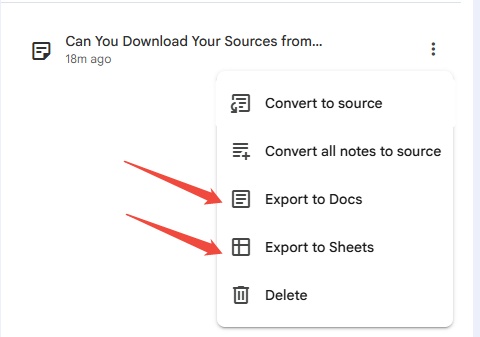
The most basic way to save your notes is using built-in Google Workspace export.
-
Step 1: Find the menu icon (three dots) next to your notes section.
-
Step 2: Select Export to Google Docs or Export to Google Sheets for structured notes.
-
Step 3: Open the exported file in Google Docs or Sheets, then download it to your device as a PDF, Word, or text file.
If you only need a quick copy, you can manually select and paste text into any document. For batch exports or more file formats, browser extensions remain a useful additional option.
How to Download NotebookLM Audio (Podcast)?
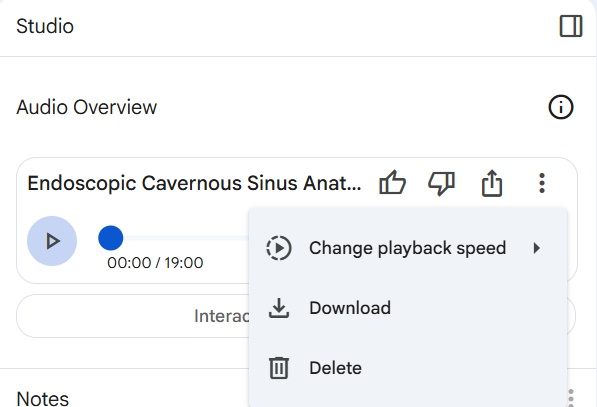
NotebookLM's popular audio summary feature lets you turn long sources into short, podcast-like clips. Once generated, you can download the finished audio directly from the built-in player as an MP3 file, making it easy to listen offline or share with others.
How to Download NotebookLM Quiz?
Unlike other Studio-generated content, NotebookLM does not offer a built-in download option for quizzes . To save your quiz offline, you can use similar methods to those for downloading sources: you may manually copy and paste the quiz content into a local document, retrieve it from your full backup ZIP file created through Google Takeout, or use reliable third-party browser extensions to export the content in structured formats.
How to Download Video from NotebookLM?
Much like audio and slides, videos in NotebookLM can be downloaded directly from the Studio panel once generated. You will find a download button next to your video overview or slide-based video output, allowing you to save the file locally with one click.
Keep in mind that premium cinematic video overviews in English are only available with certain paid plans, including Google Workspace Business or Enterprise editions, as well as Google AI Pro or Ultra subscriptions.


Visualize NotebookLM Content with Diagrimo

Once you've downloaded notes, slides, or summaries from NotebookLM, your content will still be largely text-heavy. If you want to organize ideas more clearly or present information more effectively, a visualization tool like Diagrimo can make a real difference. It is a powerful text-to-visual tool that converts plain text into structured, polished diagrams. It helps you transform messy notes and dense exported content into clean, logical visuals with no extra design work.
With Diagrimo, you can:
-
Turn rough notes into clear visual diagrams
-
Map workflows, processes, or step-by-step ideas
-
Create mind maps for studying or brainstorming
-
Build timelines for research or project planning
-
Generate clean visuals for presentations or team sharing
Conclusion
NotebookLM is an incredibly powerful tool for research and learning, but its lack of a native source export feature can feel restrictive. Thankfully, with Google Takeout, browser extensions, and simple workarounds, you can easily back up and reuse your content. Pairing these exports with visualization tools like Diagrimo also helps you turn text-heavy notes into clear, professional visuals for any workflow.

- AI text-to-visuals turns ideas into diagrams or infographics.
- Customizable styles match your brand and presentation tone.
- Share anytime by exporting in various formats and a link.
- No design skills needed for presentations, teaching, or reports.

FAQs
-
Can I Download Flashcards from NotebookLM?
-
How to Download NotebookLM Slide Deck As PPT?
-
How to Download A Presentation from NotebookLM?
-
How to Download All Sources from NotebookLM?
Yes, you can download flashcards directly from NotebookLM as CSV files. For users who prefer studying with Anki, extensions like NotebookLM Flashcards Export can also export cards in .apkg format for instant importing.
You can export slides directly as PPTX from the Studio panel. However, these files often use non-editable image-based text. To fix this, tools like DeckEdit use OCR to convert the content back into fully editable text boxes.
Downloading a presentation works the same way as exporting slides. Simply generate your deck in the Studio panel, use the PPTX export option, and edit further if needed using conversion or OCR tools.
The only way to export all sources across all notebooks at once is through Google Takeout. For more control, you can also use batch-friendly extensions like ExtendLM or export individual notebooks one by one using NotebookLM Tools.
