Are you struggling to turn your NotebookLM PDF to Podcast in a way that's engaging and easy to share? Many people create detailed PDFs in NotebookLM but find it hard to make them into video podcasts that combine visuals, narration, and slides. Watching or sharing static PDFs just isn't as effective.
Don't worry, this guide will help. We'll show you step by step how to transform your NotebookLM PDF into a professional video podcast, explain helpful tools to enhance your visuals, and make sure your content is easy to consume, share, and present. By the end, you'll have a clear, polished video podcast ready to go.
Let's get started.
Why You Want to Turn Your NotebookLM PDF into a Video Podcast
Turning a static NotebookLM PDF into a video podcast isn't just a fun idea, it's a smart way to make your content more engaging, easier to consume, and shareable. Static documents are great for reading, but when you add visuals, narration, and a dynamic format, your ideas become easier for people and yourself to absorb and enjoy.
With a video podcast based on your NotebookLM content, you can:
-
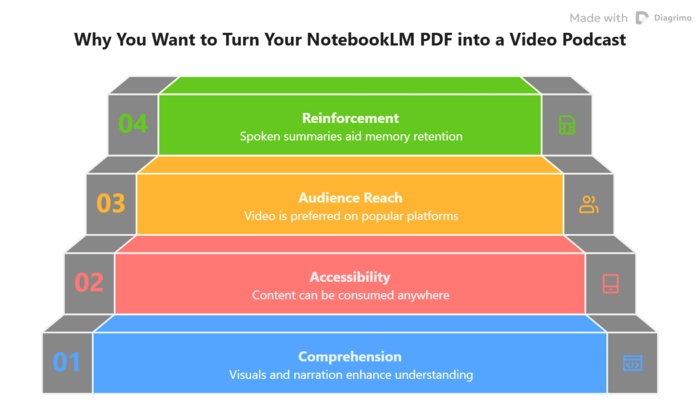
See and hear your material at the same time: Visuals and narration help with comprehension and memory.
-
Consume content on the go: Watch while commuting, exercising, or during breaks.
-
Reach a broader audience: People on YouTube, LinkedIn, and social platforms prefer video.
-
Learn better: Combining spoken summaries with on-screen highlights helps reinforce key points.

AI tools, including NotebookLM's evolving video overview features, can help convert dense PDFs into friendly video podcasts that feel natural and informative. By guiding you through the process, this article will help you make video content that's easy to watch, share, and reuse for presentations, online courses, or personal learning.
Step-by-Step: Create a Video Podcast from NotebookLM PDF
Turning your NotebookLM PDF into a video podcast is easier than it sounds. Follow these steps to generate, customize, and watch your AI-powered video podcast with visuals and narration.
-
Step 1. Open a Notebook and Upload Your PDF
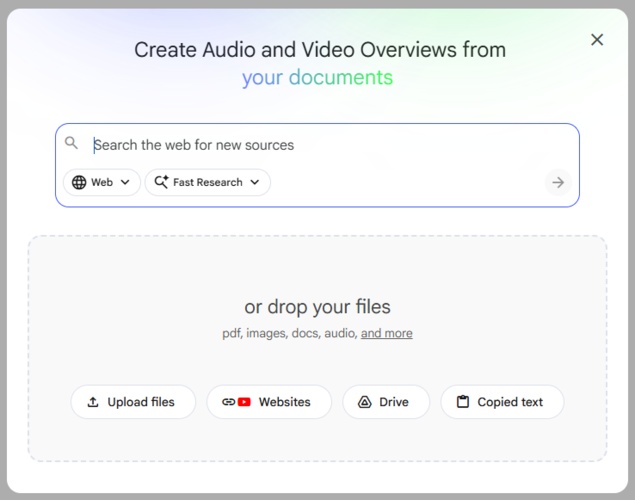
Start by opening an existing notebook or creating a new one in NotebookLM. Then, upload the PDF or other source files you want to turn into a video podcast. Make sure you have edit access, because only editors can generate video overviews.
-
Step 2. Start a Video Overview
-
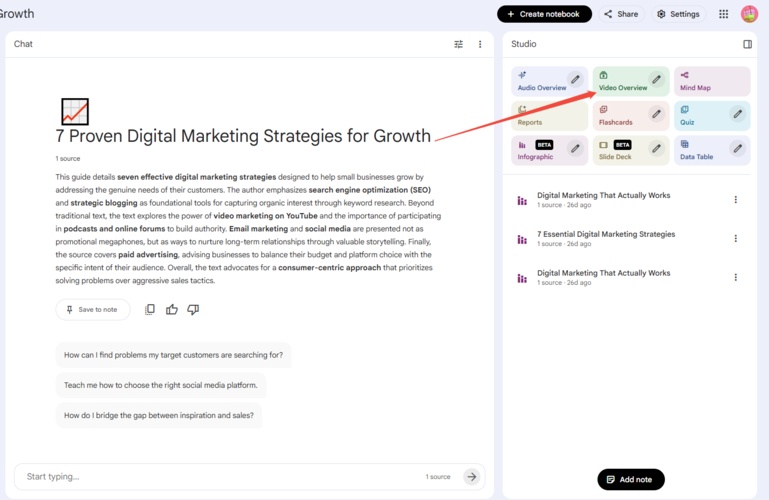
In the Studio panel, click Video Overview to begin creating your video.
-
The video will generate in the background, so you can keep working on other parts of your notebook while it processes.
 Note:
Note:AI-generated videos may occasionally have small inaccuracies or minor audio glitches, that's normal.
-
-
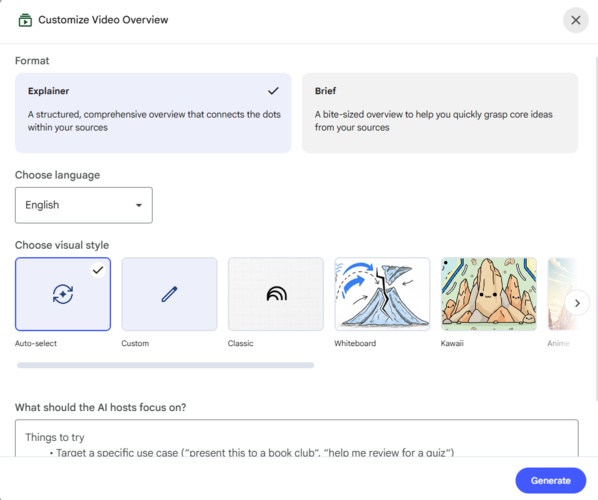
Step 3. Customize Your Video Podcast
You can tailor the video to suit your style or audience:
-
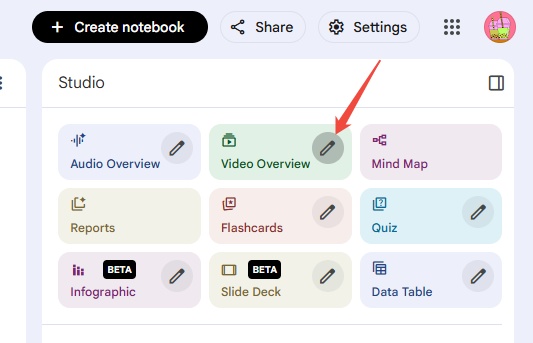
Click the pencil icon in the upper right corner of Video Overview.
-
Adjust Format: Choose Explainer for a full, detailed video or Brief for a short, quick summary.
-
Pick a Language for the narration from NotebookLM's supported options.
-
Choose a Visual Style: options include Classic, Whiteboard, Watercolor, Retro Print, Kawaii, Anime, or let NotebookLM auto-select. You can also choose Custom to describe your own unique look.
-
Add a Steering Prompt: Give instructions to focus on certain topics, emphasize specific points, or target a particular audience.
-
-
Step 4. Watch and Control Your Video
-
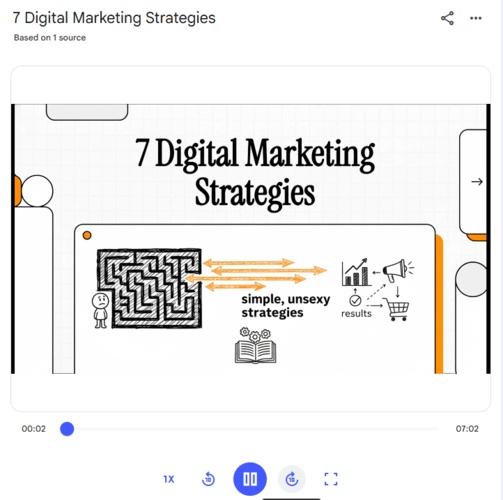
Use the playback slider to move forward or backward, or click rewind/skip forward.
-
Adjust playback speed to watch faster or slower.
-
For the best viewing experience, click the full-screen button.
 Pro Tips
-
Video generation can take a few minutes, depending on your PDF size, you can safely leave the notebook and come back later.
-
Use the steering prompt wisely to highlight the most important information for your audience.
-
Consider breaking long PDFs into smaller sections for easier, more digestible video podcasts.
By following these steps, your NotebookLM PDF becomes a dynamic, narrated video podcast, perfect for sharing online, reviewing your work, or creating educational content.
-


Bonus Tool: Use Diagrimo to Generate Perfect Visuals for Podcast

Creating a video podcast from a NotebookLM PDF is a big step, but making it visually compelling is what really makes your content stand out. That's where Diagrimo comes in. It's an AI-powered tool that instantly turns your text into clear, structured visual diagrams, charts, infographics, and other visuals that you can use to enhance slides, illustrations, and key points in your video podcast.

Diagrimo is especially useful when you want to break down complex ideas into visuals that help your viewers understand and retain information better. Its AI understands your text and figures out the best way to represent it visually, without requiring any design skills.
Here's how Diagrimo enhances your video podcast workflow:
- Make Concepts Easier to Digest
Instead of showing long blocks of text on screen, you can turn those ideas into timelines, mind maps, or diagrams that appear alongside your narration.
- Save Time on Design
You don't need to manually drag boxes, connect lines, or worry about alignment. Diagrimo's AI interprets the structure in your text and generates clean visuals in seconds.
- Customize to Match Your Brand
Once visuals are generated, you can adjust colors, layouts, fonts, and styles so they fit your podcast's visual identity or platform requirements.
- Export & Use Anywhere
After creating diagrams, you can export them as images or PDFs and insert them into your video editor, slide software, or even share them directly with your audience or team.
Conslusion
Turning your NotebookLM PDF into a video podcast makes your content more engaging, easy to share, and easier for viewers to understand. By following the steps above, you can create a professional video with narration and visuals without spending hours manually editing.
To make your video even more appealing, Diagrimo can help generate clear and polished visuals that highlight key points and enhance understanding. Using NotebookLM together with Diagrimo ensures your video podcast is not only informative but also visually compelling, helping your audience learn faster and stay interested from start to finish.

- AI text-to-visuals turns ideas into diagrams or infographics.
- Customizable styles match your brand and presentation tone.
- Share anytime by exporting in various formats and a link.
- No design skills needed for presentations, teaching, or reports.

FAQs
-
Can I add my own voiceover to a NotebookLM video podcast?
-
Can I include multimedia elements like images or GIFs in the video podcast?
-
Is there a limit to the size or length of PDFs for video podcasts?
-
Can I share the video podcast directly on social media platforms?
-
Can I track viewer engagement with my video podcast?
Yes. While NotebookLM generates AI narration automatically, you can replace it with your own voice by exporting the video and using video editing software like CapCut, Descript, or Adobe Premiere.
Absolutely. You can insert visuals, diagrams, or animations into your slides before generating the video, or overlay them later in a video editor to make the podcast more engaging.
NotebookLM works best with PDFs of moderate length. Very large PDFs may take longer to process, and it's often easier to split them into sections to ensure smoother video generation.
Yes, once exported as an MP4, your video podcast can be uploaded to YouTube, LinkedIn, Facebook, or Instagram. You can also use scheduling tools for automated posting.
While NotebookLM itself doesn't provide analytics, you can track engagement using the platform where you upload the video, for example, YouTube Analytics or LinkedIn video metrics, to see watch time, retention, and interactions.
