Making a great presentation can be tricky, but you can create presentation with Google Mixboard to make it much easier. Have you ever struggled to organize slides, pick visuals, or explain your ideas clearly? It can feel frustrating when your presentation doesn't look professional or your audience doesn't understand your points.
The good news is, you don't have to worry. In this article, you'll learn step by step how to plan, design, and finish presentations using Google Mixboard. We'll also show how AI tools like Diagrimo can help turn your ideas into clear and engaging visuals, so your slides look great and are easy to follow.
Why Use Google Mixboard for Presentations?
Making a presentation from scratch can be confusing. You have to organize your slides, pick visuals, and make sure everything looks good. Google Mixboard makes this much easier. It helps you focus on your ideas while giving your slides a professional look.

Here's why using Google Mixboard is helpful:
-
Easy Organization: Arrange your slides in the right order without any hassle.
-
Quick Visuals: Add images, charts, and diagrams to make your slides clear and engaging.
-
Collaboration: Work with teammates in real time and make edits together.
-
Professional Design: Get a clean, polished look for presentations without design skills.
-
AI Integration: Use tools like Diagrimo to create charts, diagrams, and infographics automatically.
Using Google Mixboard with AI tools saves time and makes your presentation easy to understand for any audience.
Step-by-Step Guide to Creating a Presentation Using Google Mixboard
Creating your presentation with Google Mixboard is easier than you might think, especially with its new AI features that can turn idea boards into slide decks automatically. Mixboard works like a smart visual workspace where you brainstorm, organize, and then generate visuals that help turn your content into a presentation quickly.
Here's a simple step-by-step guide to walk you through the process:
-
Step 1. Open Google Mixboard and Sign In
Go to the Mixboard page on Google Labs and sign in with your Google account. If you haven't used Mixboard before, you may be prompted to join the beta or enable access. This gives you a blank canvas where you can start building your presentation ideas.
-
Step 2. Start a New Project
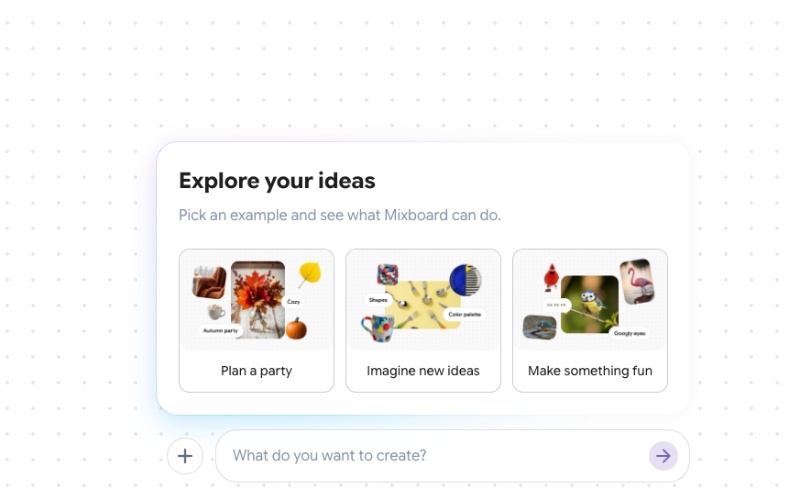
Click "New Project" or "Get Started" to create a fresh workspace. You can either start with a blank board or choose a template if available. Starting with a prompt helps the tool generate relevant visuals right away.
-
Step 3. Add Your Ideas and Visuals
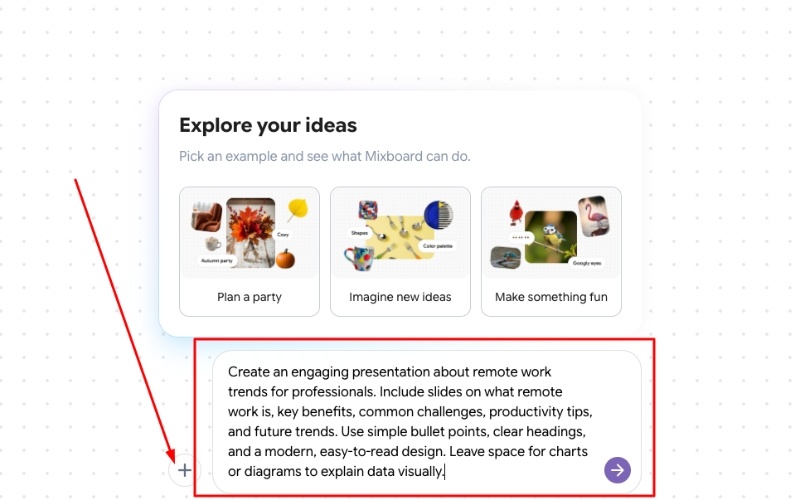
On your workspace canvas, type a short description of your presentation topic. You can also upload images, notes, or screenshots that relate to your content. The AI will use these inputs to generate visuals that match your theme or style.
-
Step 4. Let AI Generate Visual Concepts
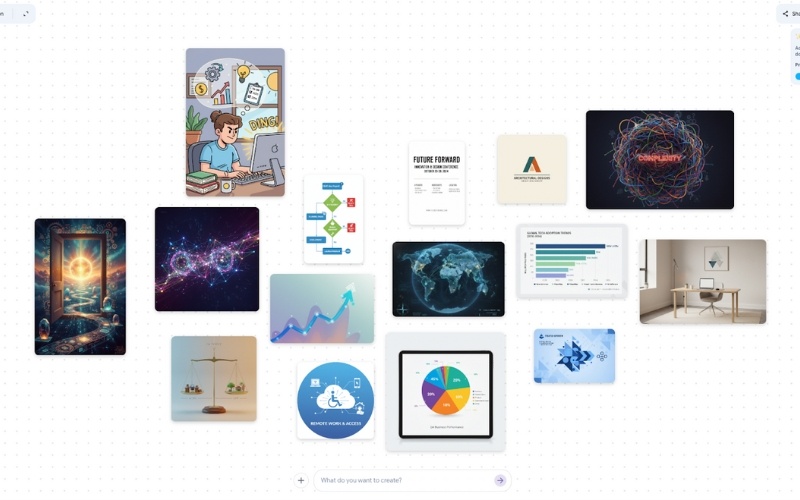
After adding your text and images, ask Mixboard to generate visuals using natural language prompts. For example, type something like "Create visuals for a business growth slide" to get relevant boards filled with images, layouts, or graphics.
-
Step 5. Arrange and Refine Your Board
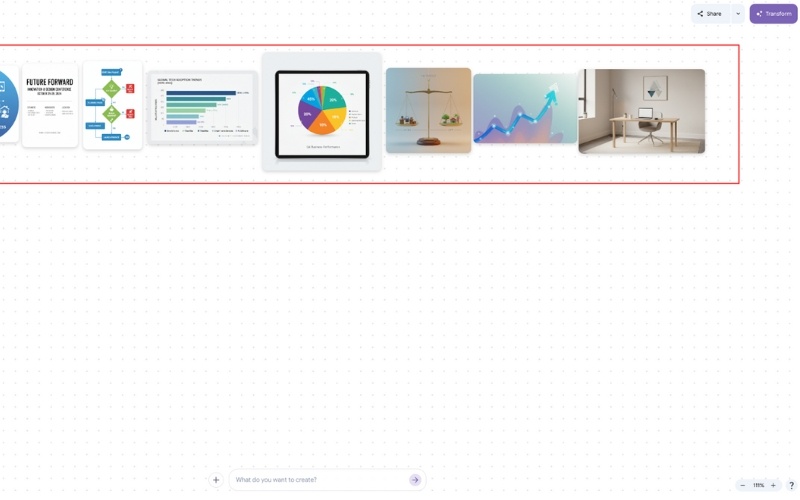
Once visuals appear on your canvas, you can move them around, resize, or delete anything you don't like. If you want more versions of a visual, options like "Regenerate" or "More like this" help you explore different looks.
-
Step 6. Convert to a Presentation
When you're ready, use the AI presentation feature powered by Nano Banana Pro to turn your board into a full slide deck. Mixboard analyzes your content and automatically builds slides with visuals and text that match your ideas. This saves you time on layout and design.
-
Step 7. Export and Share
Finally, once your presentation looks good, you can export it. Choose formats like Google Slides, PDF, or shareable links, depending on where you want to present or share it. This makes it easy to show your work in meetings, classrooms, or online.
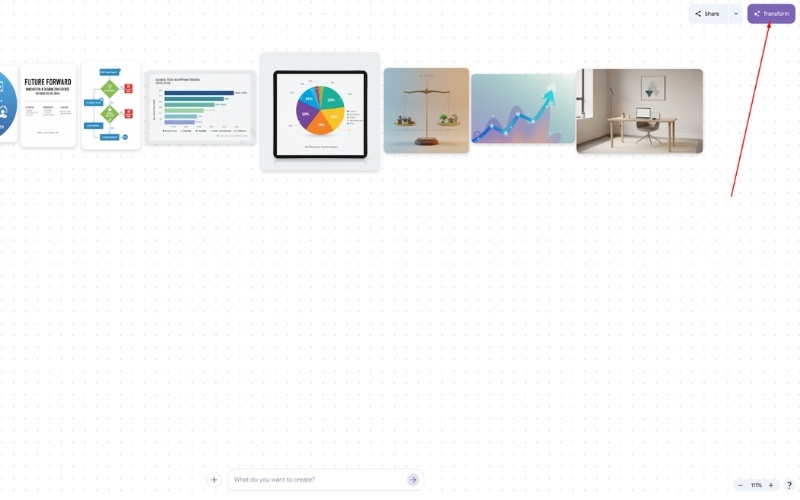
Using these steps, you can go from a blank canvas to a complete presentation in just a few clicks, no need to worry about slide design or layout decisions yourself.


Tips for Creating Effective Presentations
Making a presentation is more than just adding slides. To make your slides clear and interesting, follow these easy tips:
-
Keep Slides Simple: Use short sentences or bullet points. Avoid too much text so people can understand quickly.
-
Use the Same Design: Keep colors, fonts, and styles the same on all slides. This makes your presentation look neat and professional.
-
Highlight Important Points: Use charts, diagrams, or infographics to show key information. Tools like Diagrimo can help make these visuals fast.
-
Think About Your Audience: Make slides for students, coworkers, or professionals. Use words and visuals they can easily understand.
-
Add Visual Variety: Mix images, charts, and text to make slides more interesting. Avoid slides with only text.
-
Practice Your Flow: Arrange slides in a clear order and practice presenting them so your audience can follow along easily.
Following these tips will help you make presentations that are simple, professional, and easy for anyone to understand.
How Diagrimo Enhances Your Presentations
When you create presentations with Google Mixboard, visuals often make all the difference, especially for showing ideas clearly and keeping your audience engaged. Diagrimo makes this part much easier, even if you've never designed anything before.
Here's how Diagrimo helps improve your presentation work:
-
Step 1. Turns Text Into Visuals Automatically
Instead of manually drawing charts or diagrams, you simply paste your text into Diagrimo. The AI reads your words and figures out the best visual style, like flowcharts, timelines, fishbone diagrams, or mind maps, and then creates clean visuals in seconds.
-
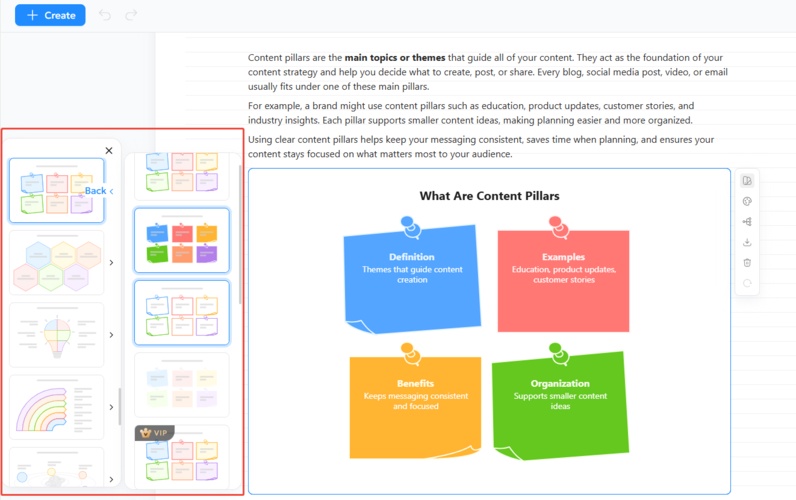
Step 2. Offers Smart Templates and Styles
Diagrimo has many ready-to-use templates that are already designed for presentations. You can choose different layouts, colors, and fonts so your visuals look polished and professional without extra effort.
-
Step 3. Makes Collaboration Easy
If you're working with others, Diagrimo lets you share or edit visuals in real time. You can invite teammates to review or update visuals together, which is helpful when preparing group presentations.
-
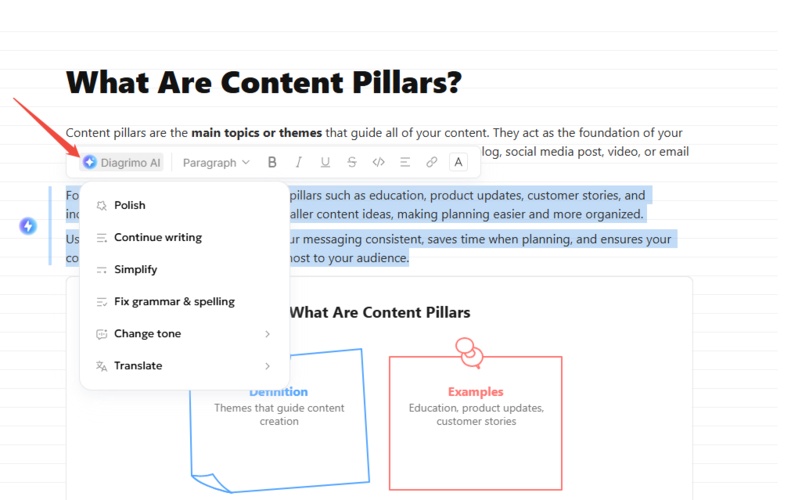
Step 4. Improves Your Text Before Visualization
Before turning text into visuals, Diagrimo's built-in AI assistant can polish your writing, fixing grammar, clarifying ideas, and making sentences stronger. This means your visuals start from clear, well-written content.
-
Step 5. Easy Export for Slides or Reports
Once your visuals are ready, you can export them as images or PDFs for Google Slides, PowerPoint, or handouts. This makes it simple to bring your visuals into your final presentation.
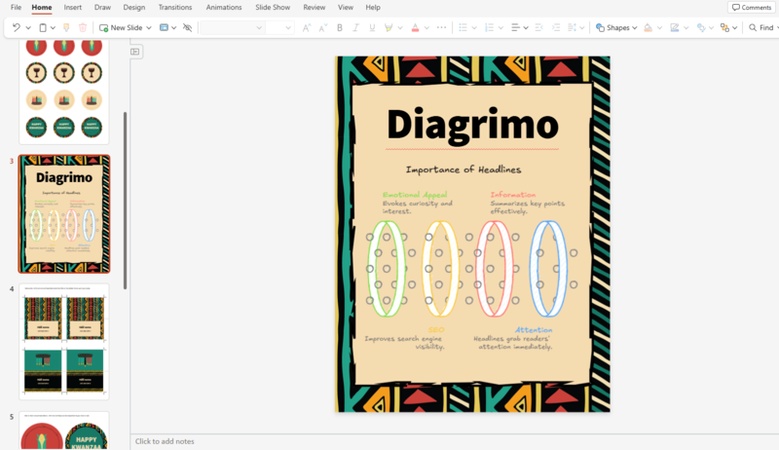
With Diagrimo, you save time, avoid design stress, and get visuals that help your audience understand your message more easily, all directly supporting your presentation work in Google Mixboard.


Final Thoughts
Creating a presentation doesn't have to be difficult or stressful. By using Google Mixboard, you can organize your slides and ideas easily, and with Diagrimo, you can turn your text into clear visuals in just a few clicks.
Planning your content, adding AI-generated charts or diagrams, and customizing your slides will make your presentation look professional and easy to understand. Whether you're a student, teacher, or professional, these tools save time and help you focus on your message, not the design. Start using Google Mixboard and Diagrimo today, and make your presentations simple, engaging, and effective.

- AI text-to-visuals turns ideas into diagrams or infographics.
- Customizable styles match your brand and presentation tone.
- Share anytime by exporting in various formats and a link.
- No design skills needed for presentations, teaching, or reports.

FAQs
What is Google Mixboard?
-
Can I use AI to create visuals for my slides?
-
Do I need design skills to use Mixboard and Diagrimo?
-
Can I collaborate with others on my presentation?
How do I export my presentation?
Google Mixboard is an easy-to-use platform that helps you plan, organize, and design presentations. You can work on slides, add visuals, and collaborate with others in real time.
Yes. AI tools like Diagrimo can automatically turn your text, notes, or data into charts, diagrams, and infographics. These visuals can be added directly to your slides.
No. You don't need any design experience. Mixboard provides easy slide layouts, and Diagrimo automatically creates professional-looking visuals for your presentations.
Yes. Google Mixboard lets you work with teammates at the same time. You can edit slides, add comments, and organize content together easily.
After finishing your slides, you can export your presentation as Google Slides, PowerPoint, or PDF files. This makes it easy to share or present anywhere.
